
Introduction
Welcome to the AfDB Reference Application — User Manual. This guide covers the complete enterprise portal, enabling African Development Bank staff to manage projects, coordinate teams, generate reports, and track portfolio activities across member countries. This application is the live deliverable described in Section 10: Added Value of the Proposal for Consultancy Services — Senior Web Frontend Developer Consultant (TCIS).
Ensure you have your AfDB credentials and access to your email for two-factor authentication.
Key Features
- Project Management — Create, edit, and track projects across African member countries
- Team Collaboration — Manage team members, assign roles, and set permissions
- Reporting — Generate and download comprehensive project reports
- Security — Enterprise-grade security with MFA, session management, and audit trails
- Search — Quickly find projects by name, code, country, or sector
Getting Started
This section guides you through accessing the system for the first time.
2.1 Login
Access the system by navigating to the login page and entering your credentials.
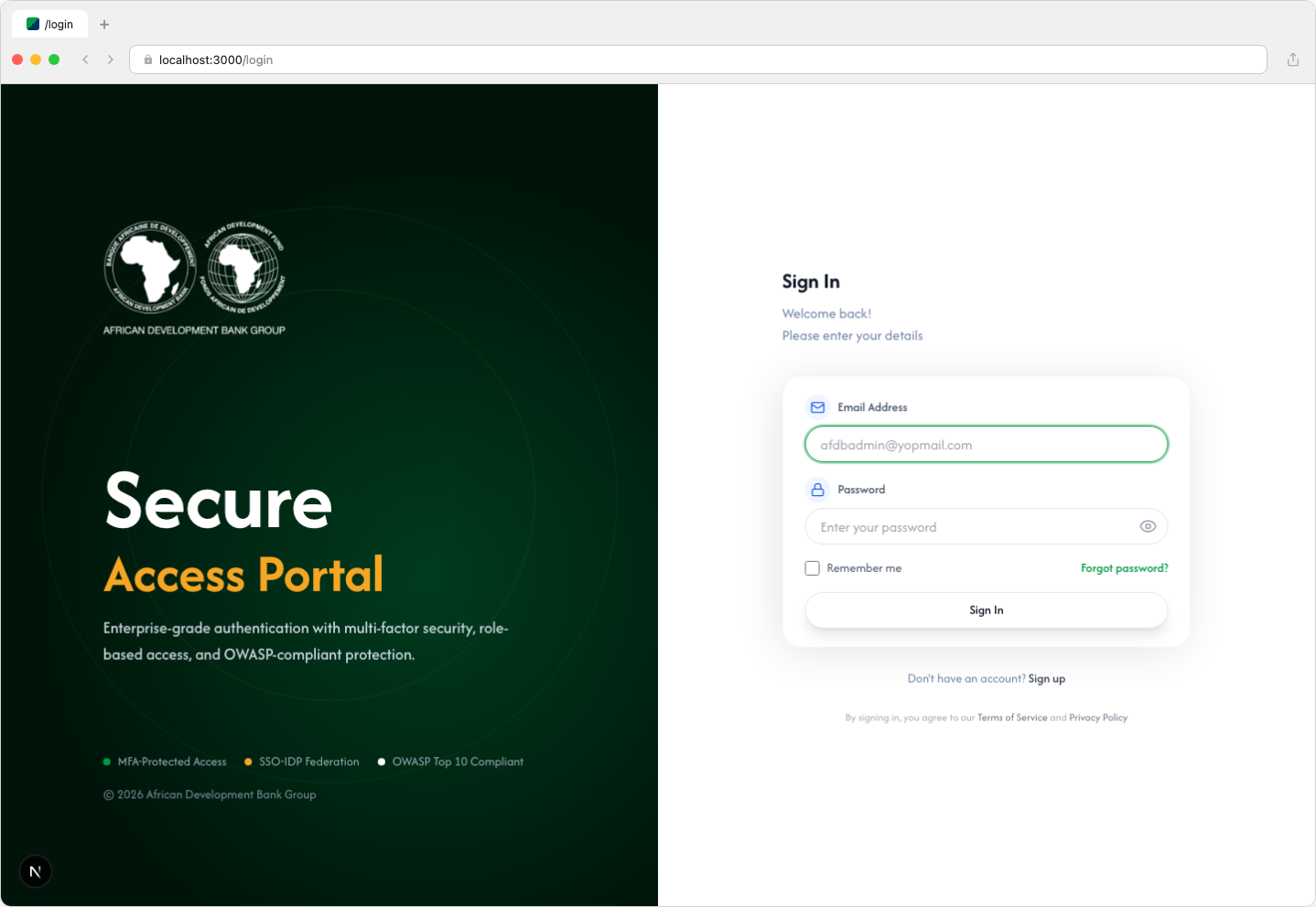
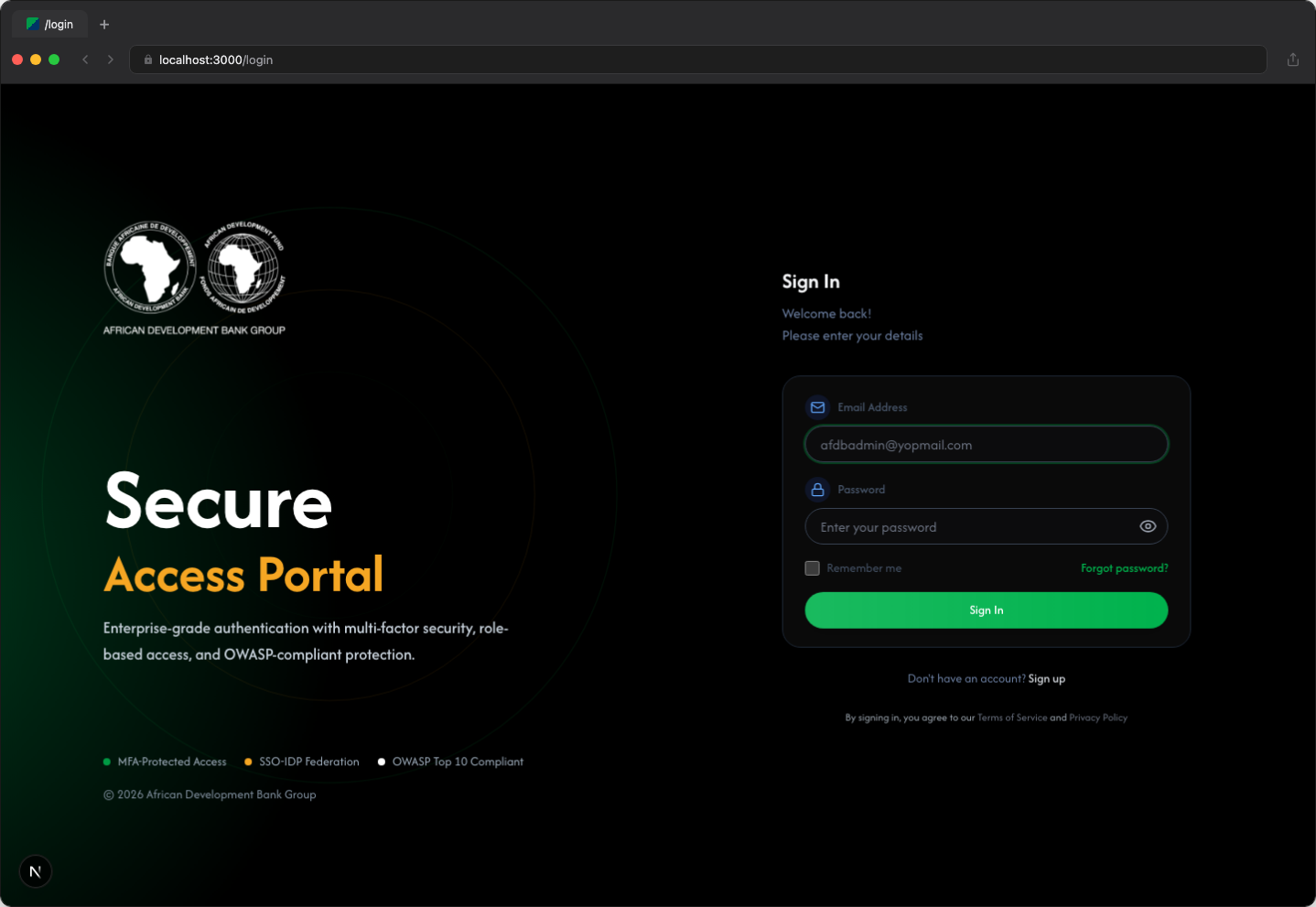
- Open your web browser and navigate to the AfDB Reference Application URL
- Enter your email address in the Email Address field
- Enter your password in the Password field
- Click the Sign In button
- If you have two-factor authentication enabled, you will be prompted to enter a verification code (see Section 2.2)
- Upon successful authentication, you will be redirected to the Dashboard
After 5 failed login attempts, your account will be locked for 15 minutes. Contact IT support if you need assistance.
2.2 Two-Factor Authentication
For enhanced security, the system requires email-based verification after entering your credentials.
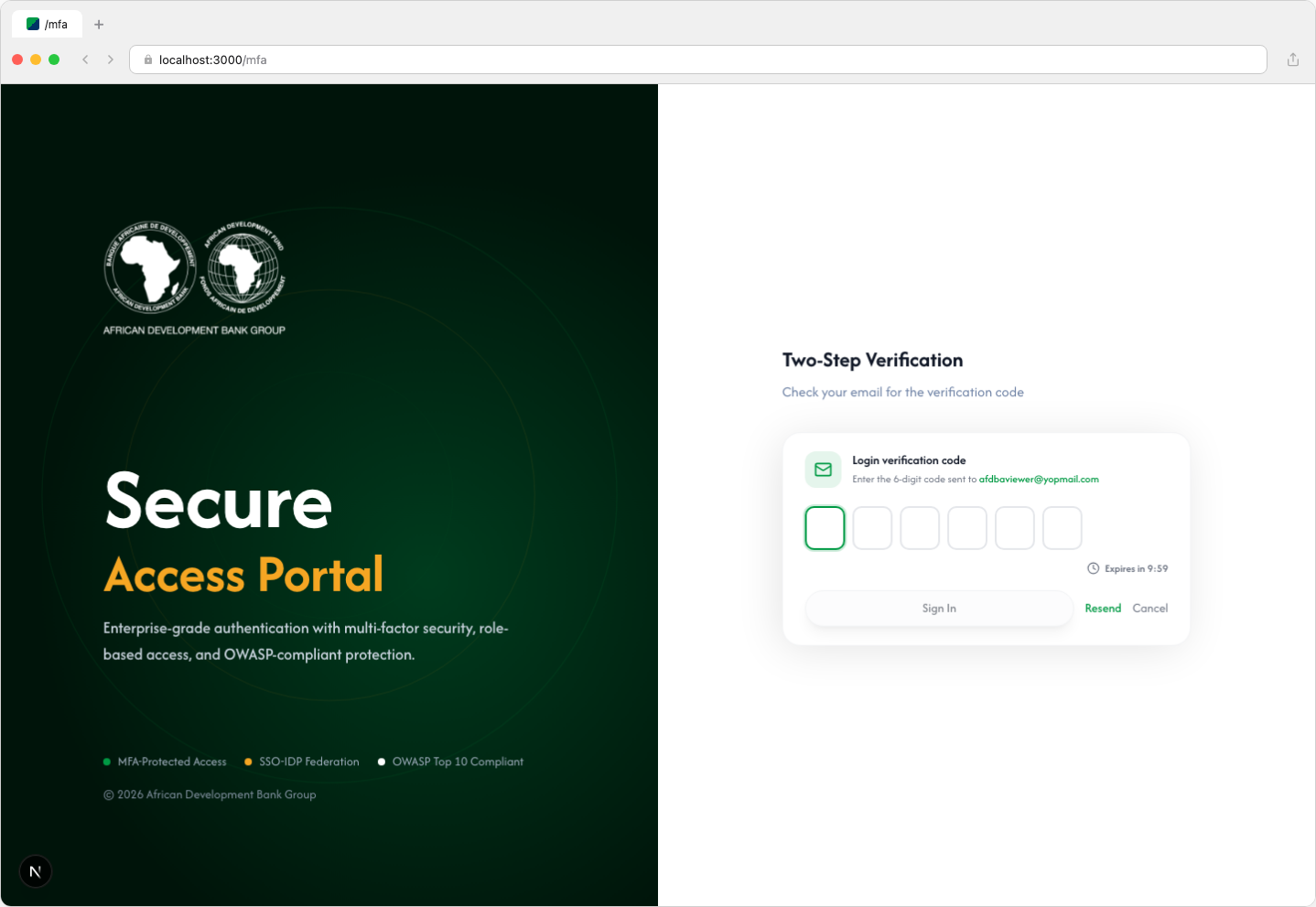
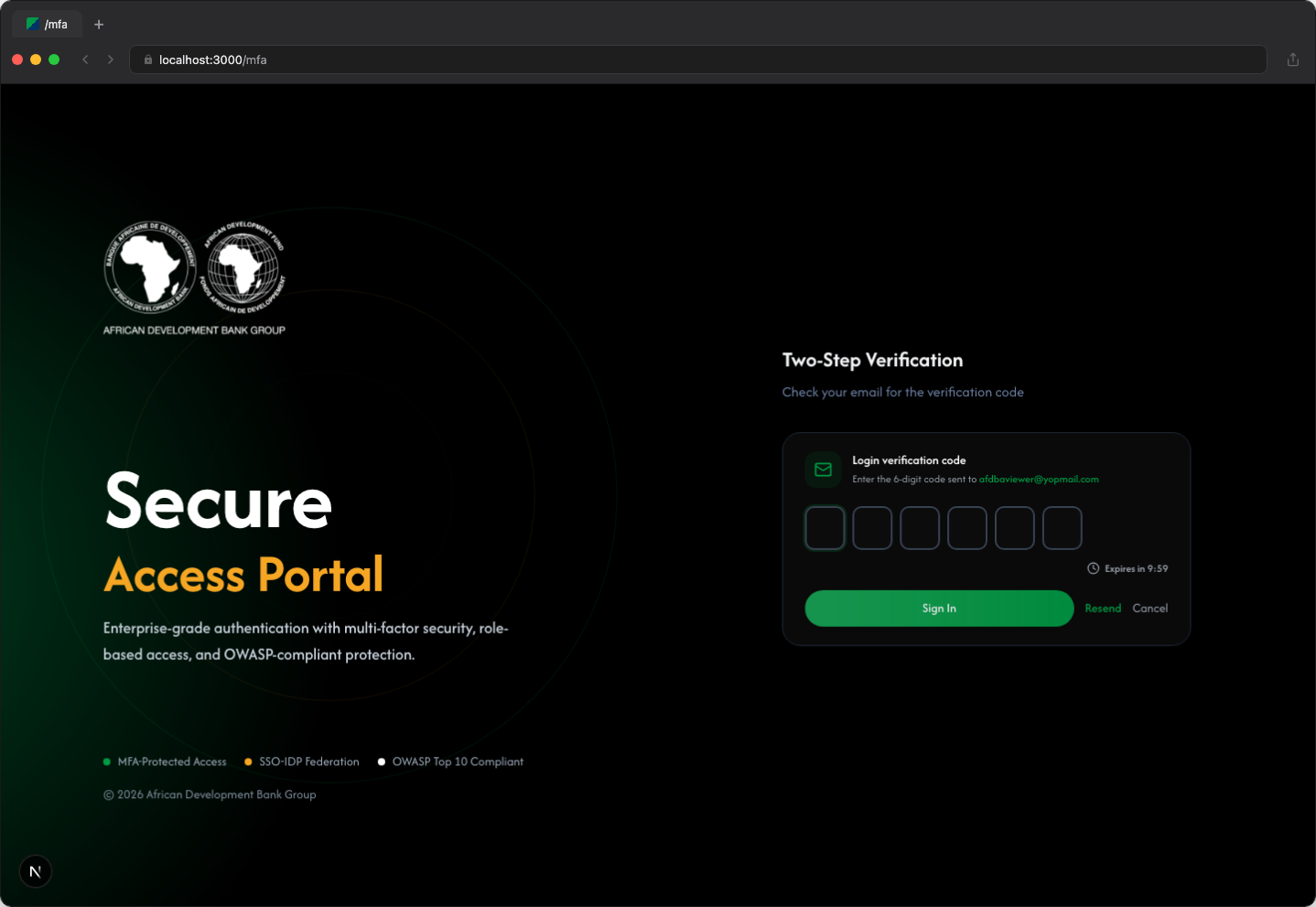
- After entering your credentials, check your email for a 6-digit verification code
- Enter the code in the verification fields (one digit per field)
- Click Sign In to complete authentication
- If you don't receive the code, click Resend Code to request a new one
Verification codes expire after 10 minutes. If your code expires, simply request a new one.
2.3 Verification Code Email (OTP Inbox)
After requesting a verification code, the system sends an email to your registered email address. This email contains a 6-digit One-Time Password (OTP) that you must enter on the verification screen to complete authentication.
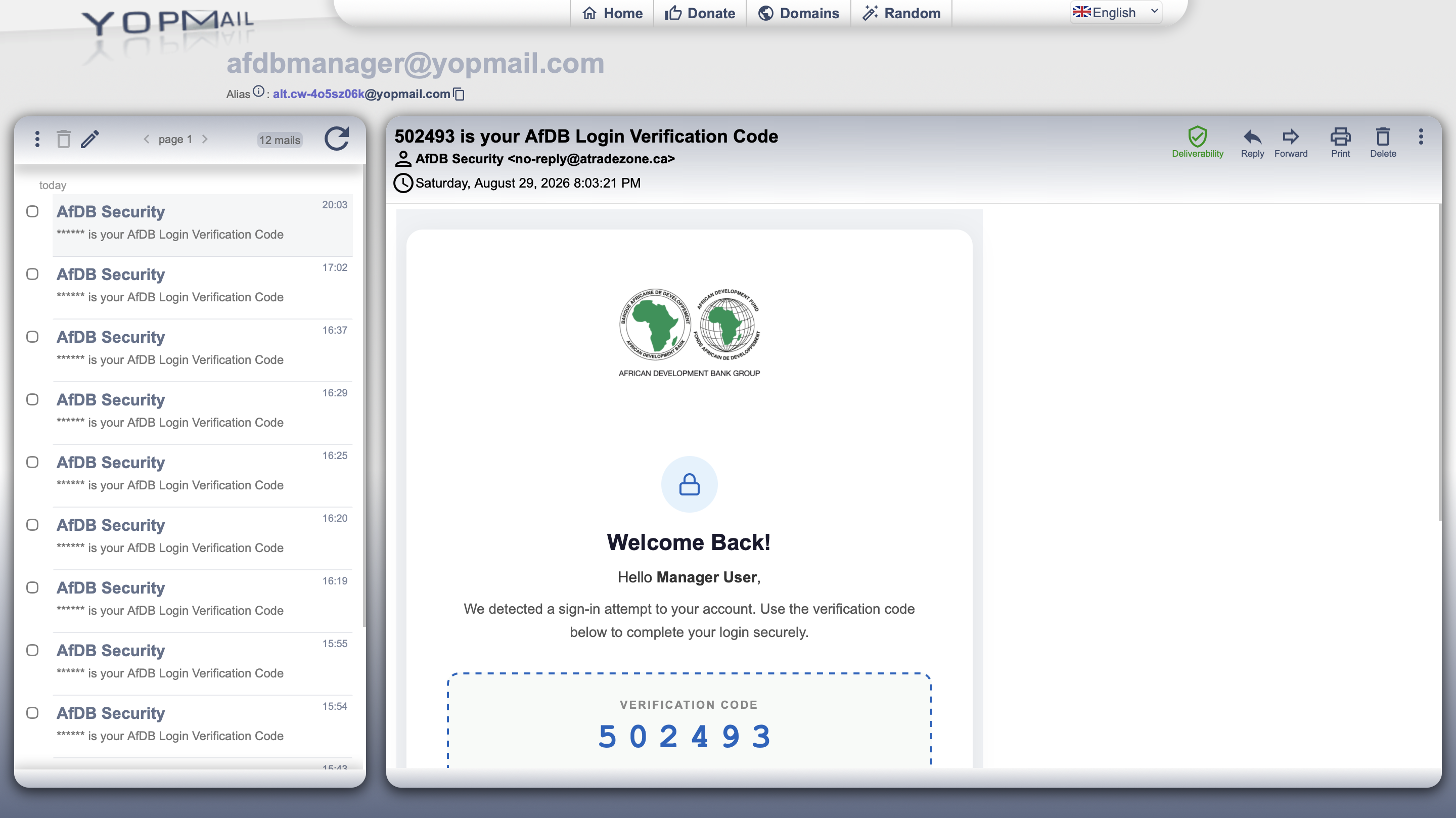
- Open your email inbox and look for an email from AfDB Reference Application
- Open the email to find the 6-digit verification code
- Enter the code in the verification fields on the authentication screen
- Click Sign In to complete the verification process
If you do not see the email in your inbox, check your spam/junk folder. You can also click Resend Code on the verification screen to receive a new code. Never share your verification code with anyone.
Dashboard
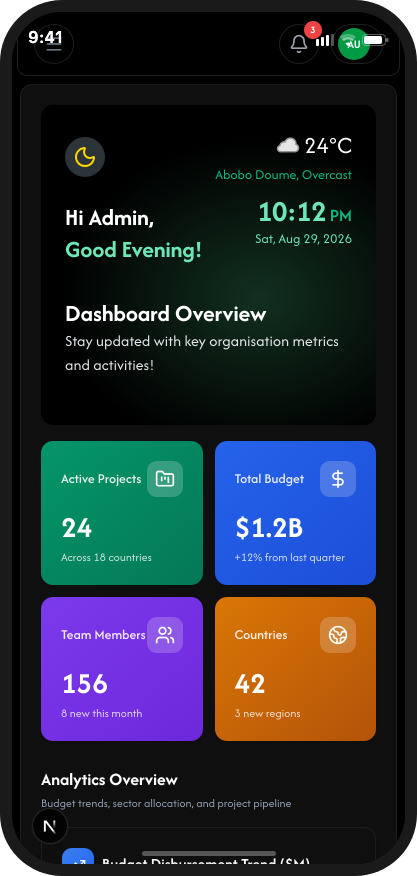
The Dashboard provides an overview of your projects, team activities, and key metrics at a glance.
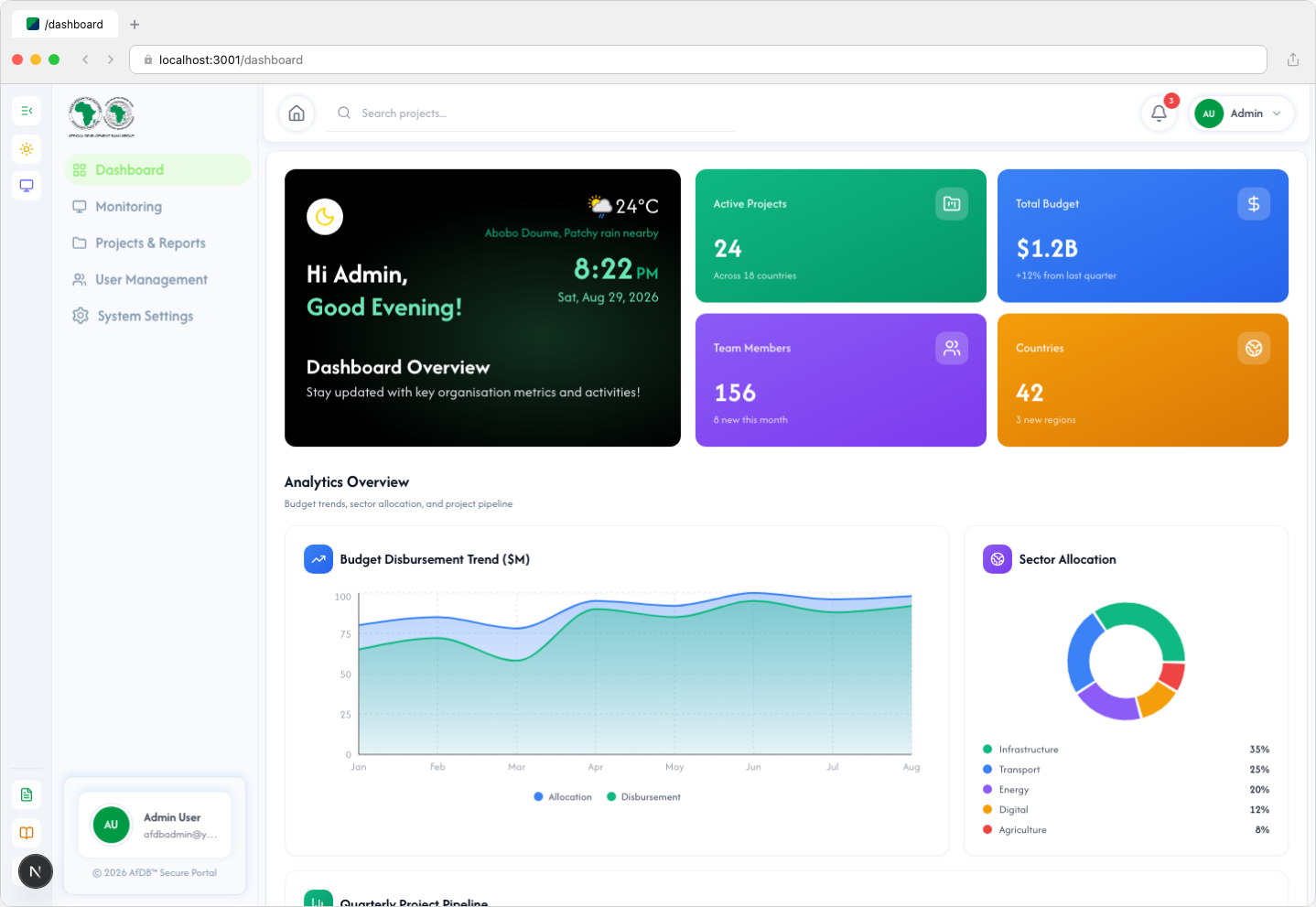
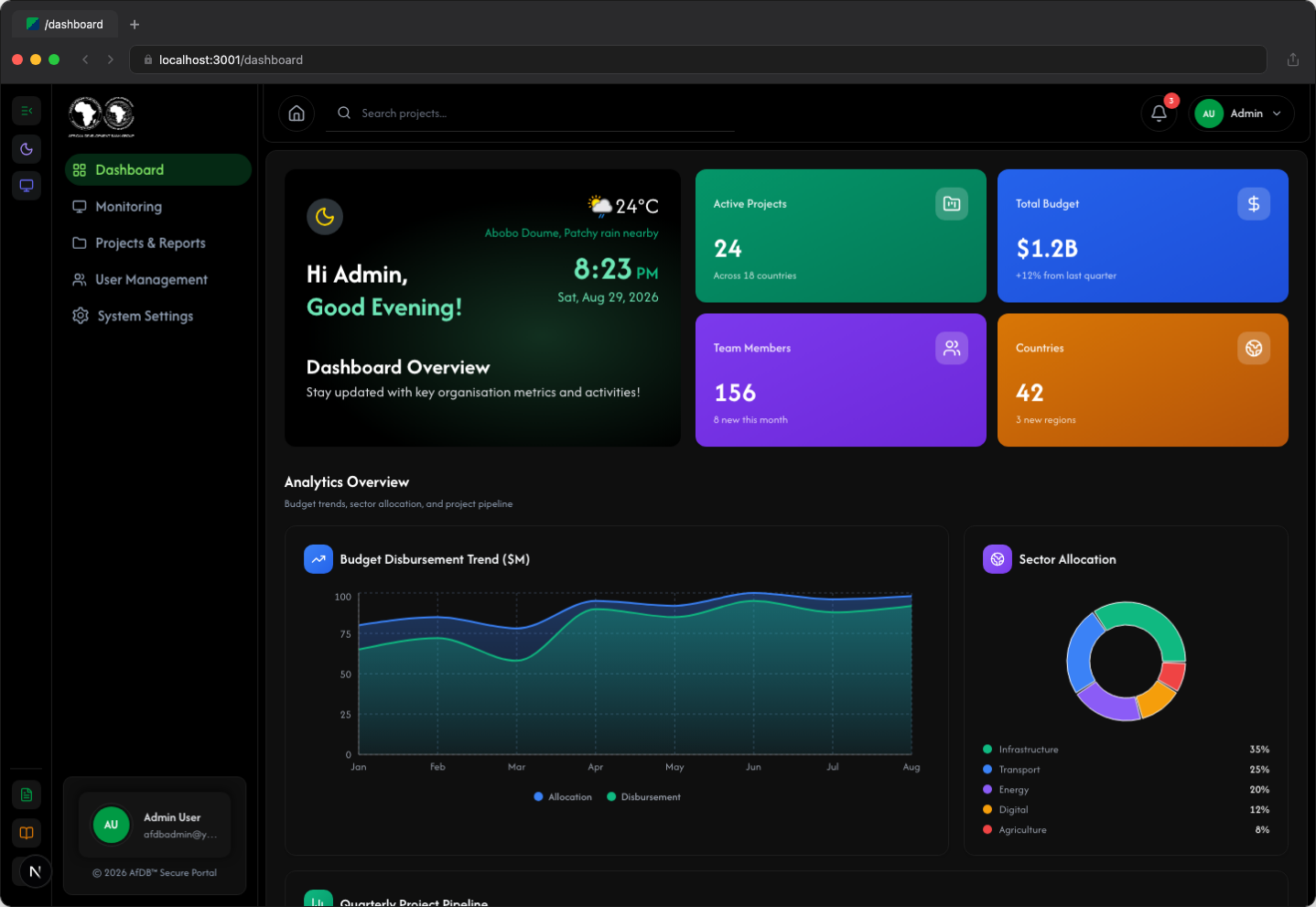
3.1 Dashboard Components
| Component | Description |
|---|---|
| Search Bar | Located at the top, allows quick search across all projects |
| Project Summary | Displays total projects, active projects, and completion rates |
| Recent Activity | Shows latest actions performed by team members |
| Quick Actions | Shortcuts to create projects, add team members, and generate reports |
3.2 Using the Search Bar
The search bar allows you to quickly find projects by name, code, country, or sector.
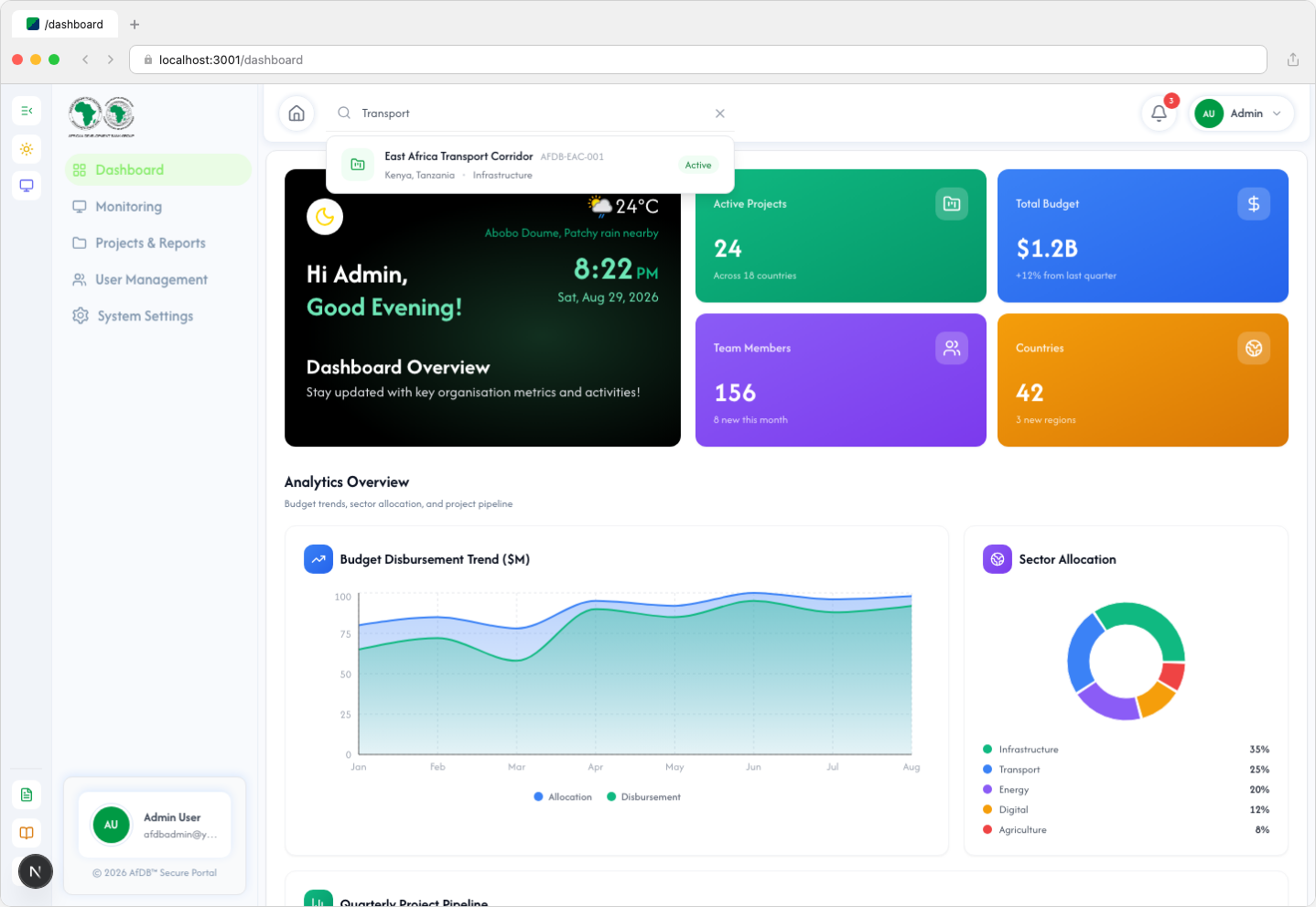
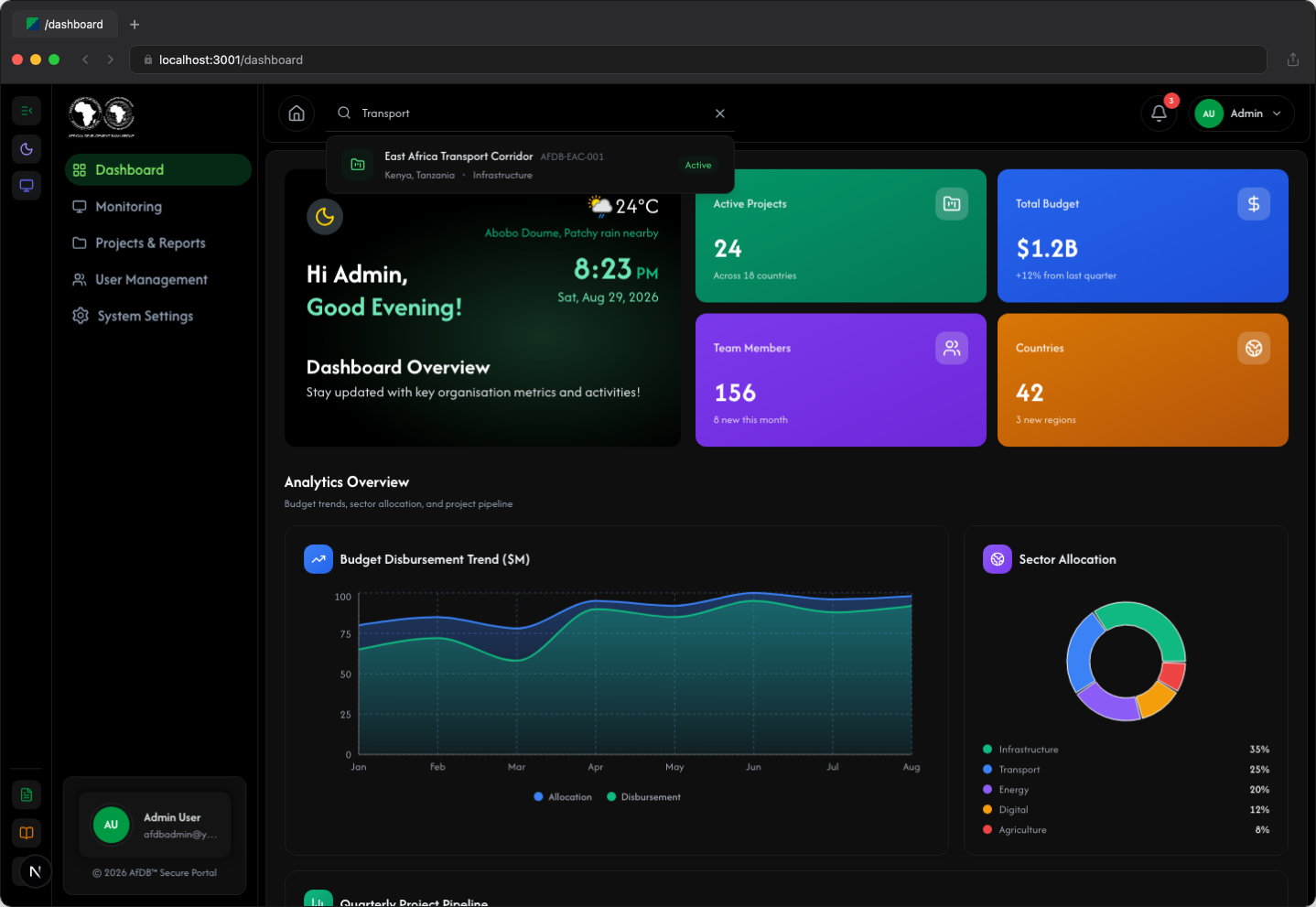
- Click on the search bar at the top of the page
- Start typing your search query (e.g., project name, country, sector)
- Results will appear automatically as you type (after 3 characters)
- Click on a result to navigate directly to that project
Projects
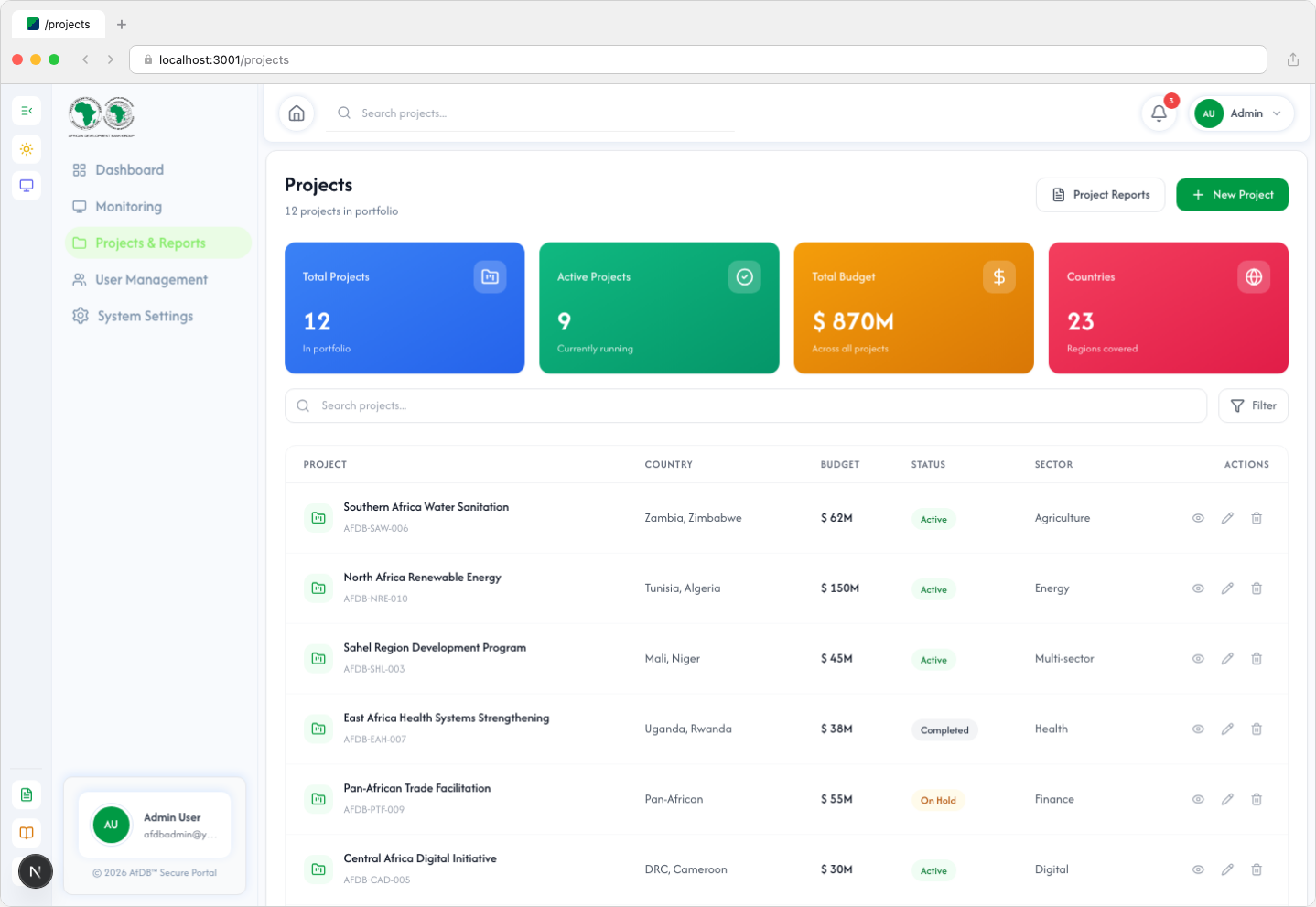
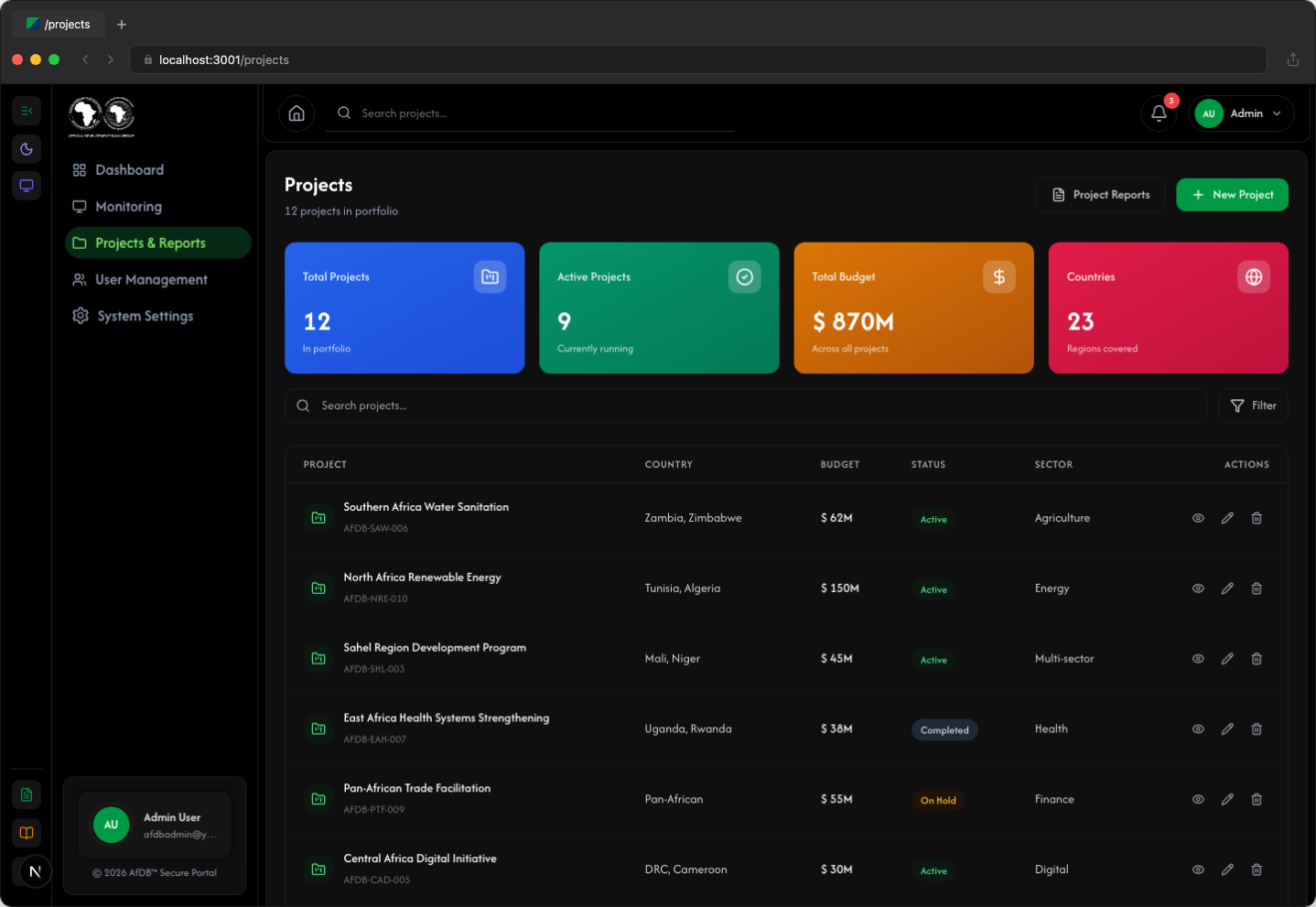
The Projects page displays all projects in the system with filtering and management capabilities.
4.1 Create a New Project
Follow these steps to create a new project in the system.
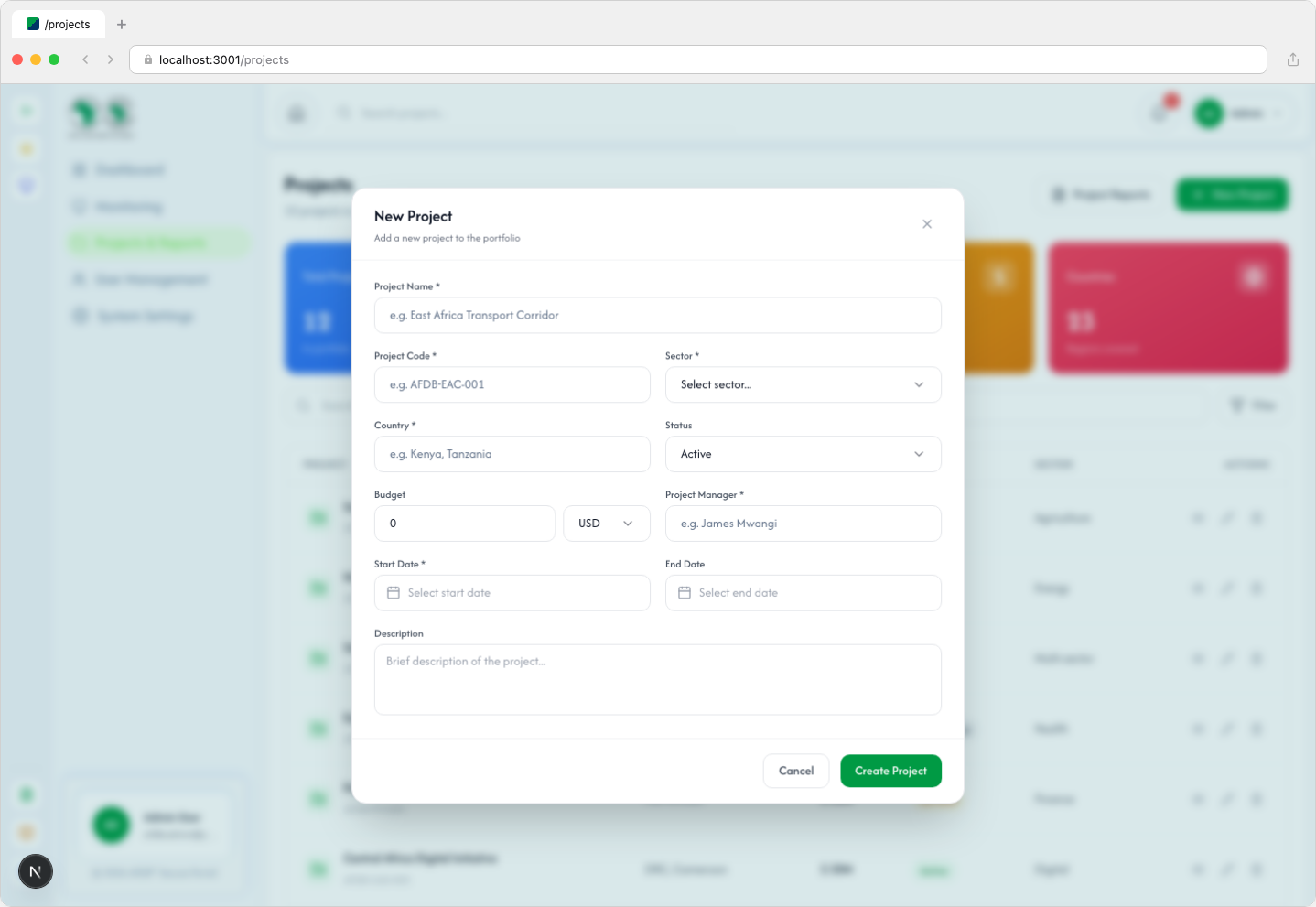
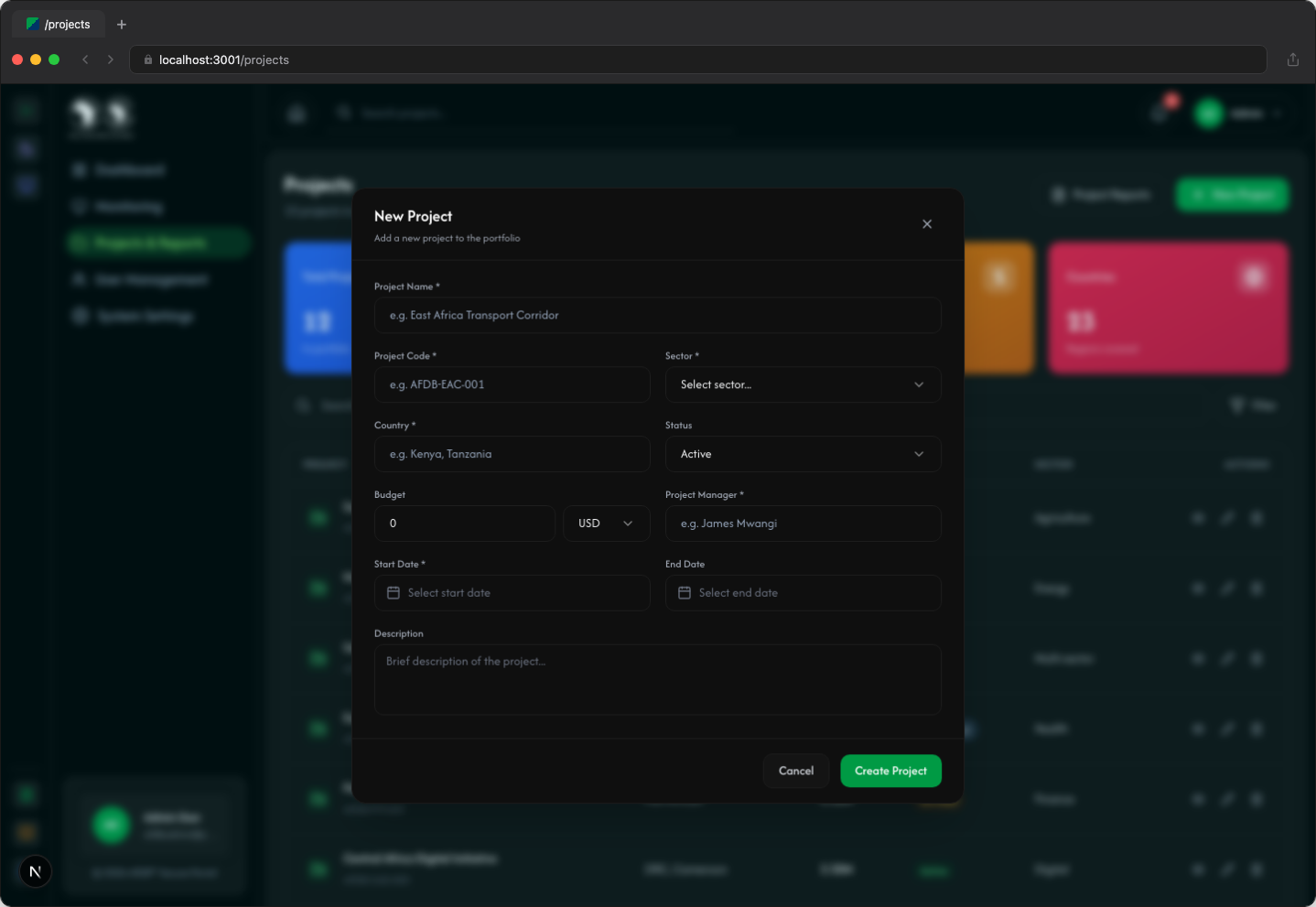
- Click the New Project button on the Projects page
- Fill in the required fields:
- Project Name — The official name of the project
- Project Code — A unique identifier (e.g., AFDB-2026-001)
- Country — The member country where the project is located
- Sector — The sector classification (e.g., Infrastructure, Agriculture)
- Project Manager — The assigned manager for the project
- Budget — The total budget allocation
- Start Date and End Date — Project timeline
- Click Create Project to save
- A success notification will appear confirming the project was created
After creating a project, you'll see a green notification at the bottom of the screen confirming the action.
4.2 View Project Details
Click on any project row in the projects table to view detailed information.
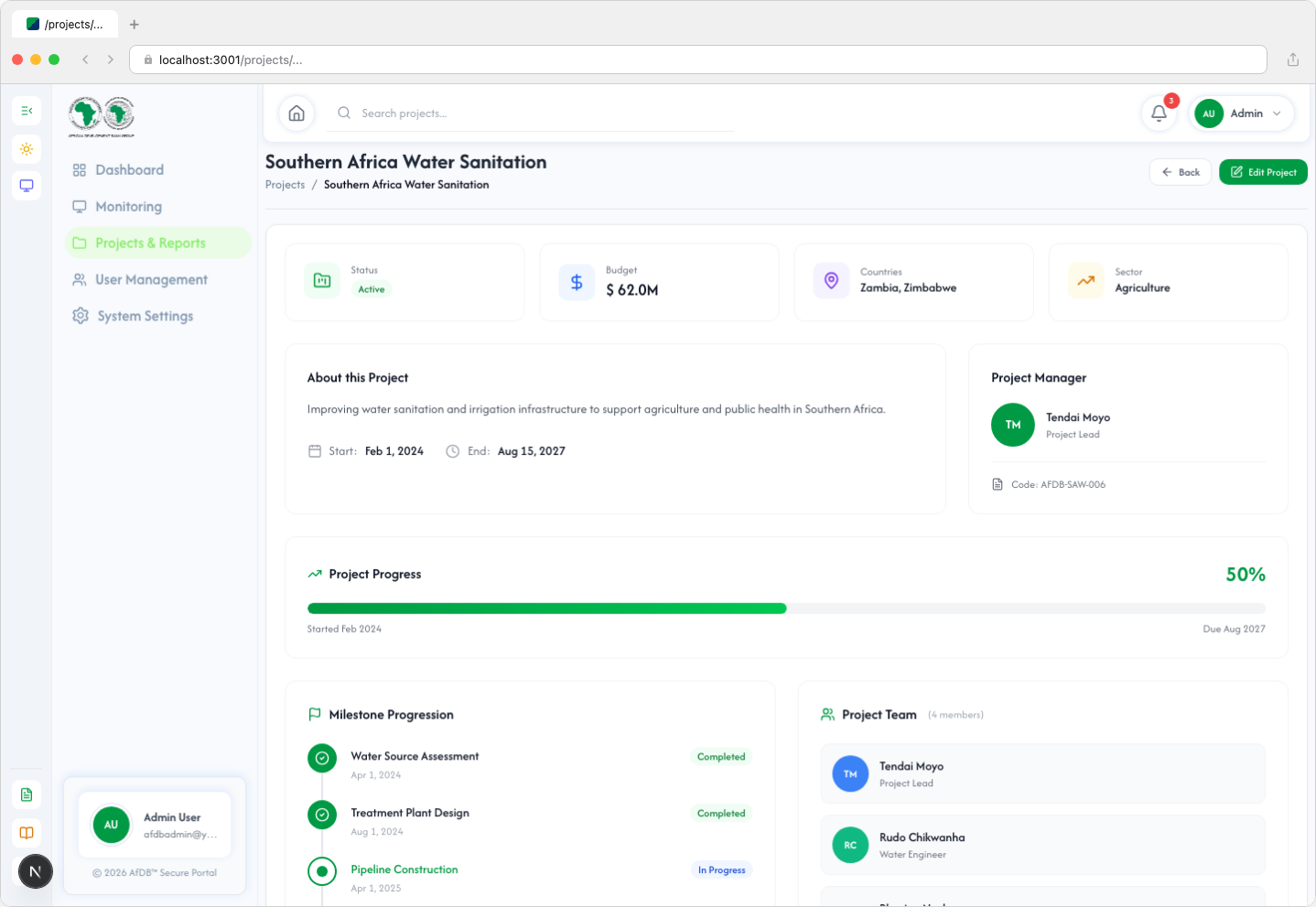
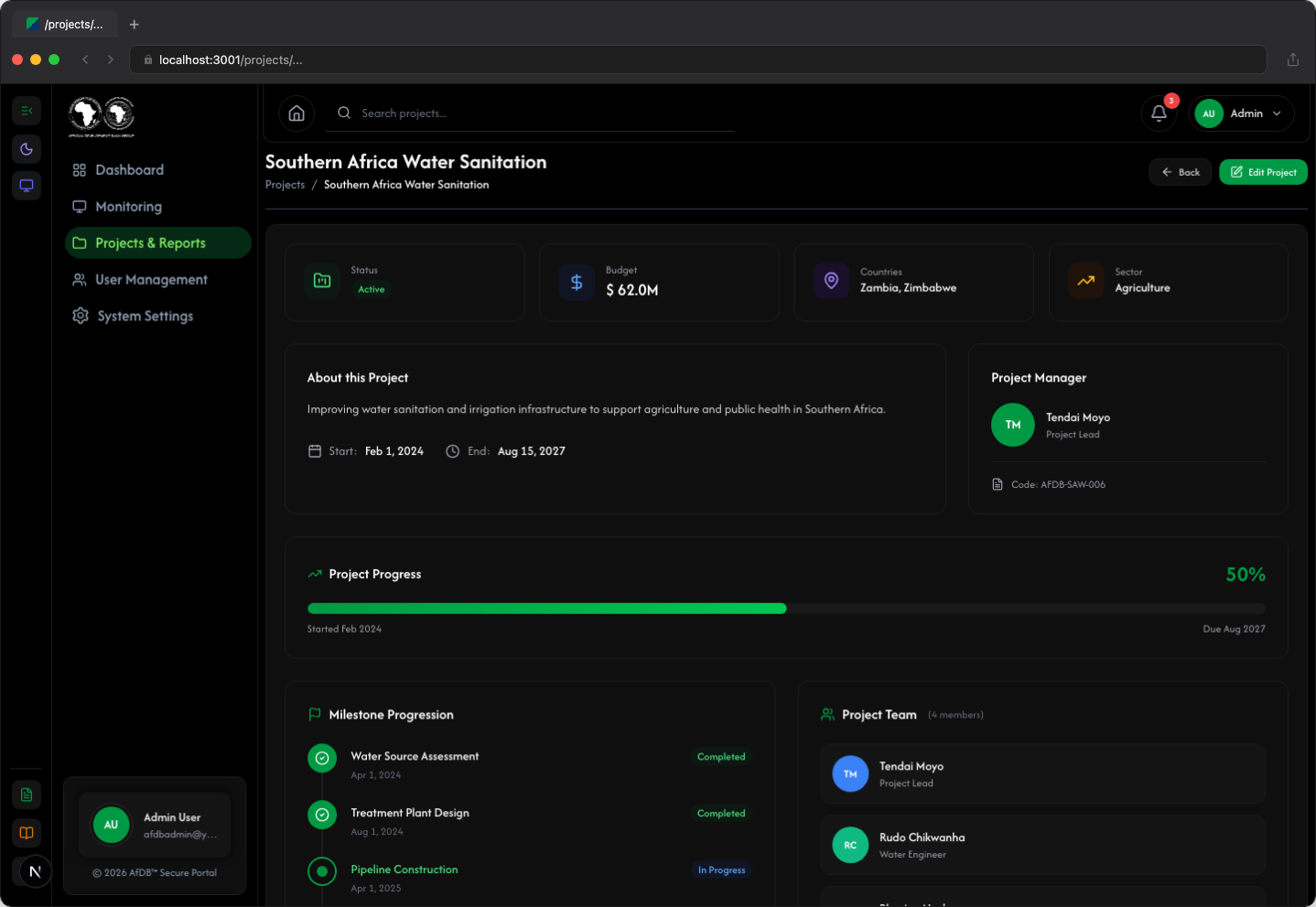
The project detail page displays:
- Project overview and status
- Budget and financial information
- Timeline and milestones
- Assigned team members
- Related documents and reports
4.3 Edit a Project
- Navigate to the Projects page
- Click on the project you want to edit
- Click the Edit button on the project detail page
- Modify the necessary fields
- Click Update Project to save changes
- A success notification will confirm the update
4.4 Search Projects
Use the search functionality to quickly find projects.
| Search Field | Example |
|---|---|
| Project Name | "Transport Infrastructure" |
| Project Code | "AFDB-2026-001" |
| Country | "Kenya", "Nigeria", "South Africa" |
| Sector | "Infrastructure", "Agriculture", "Energy" |
| Manager Name | "John Doe" |
Team Management
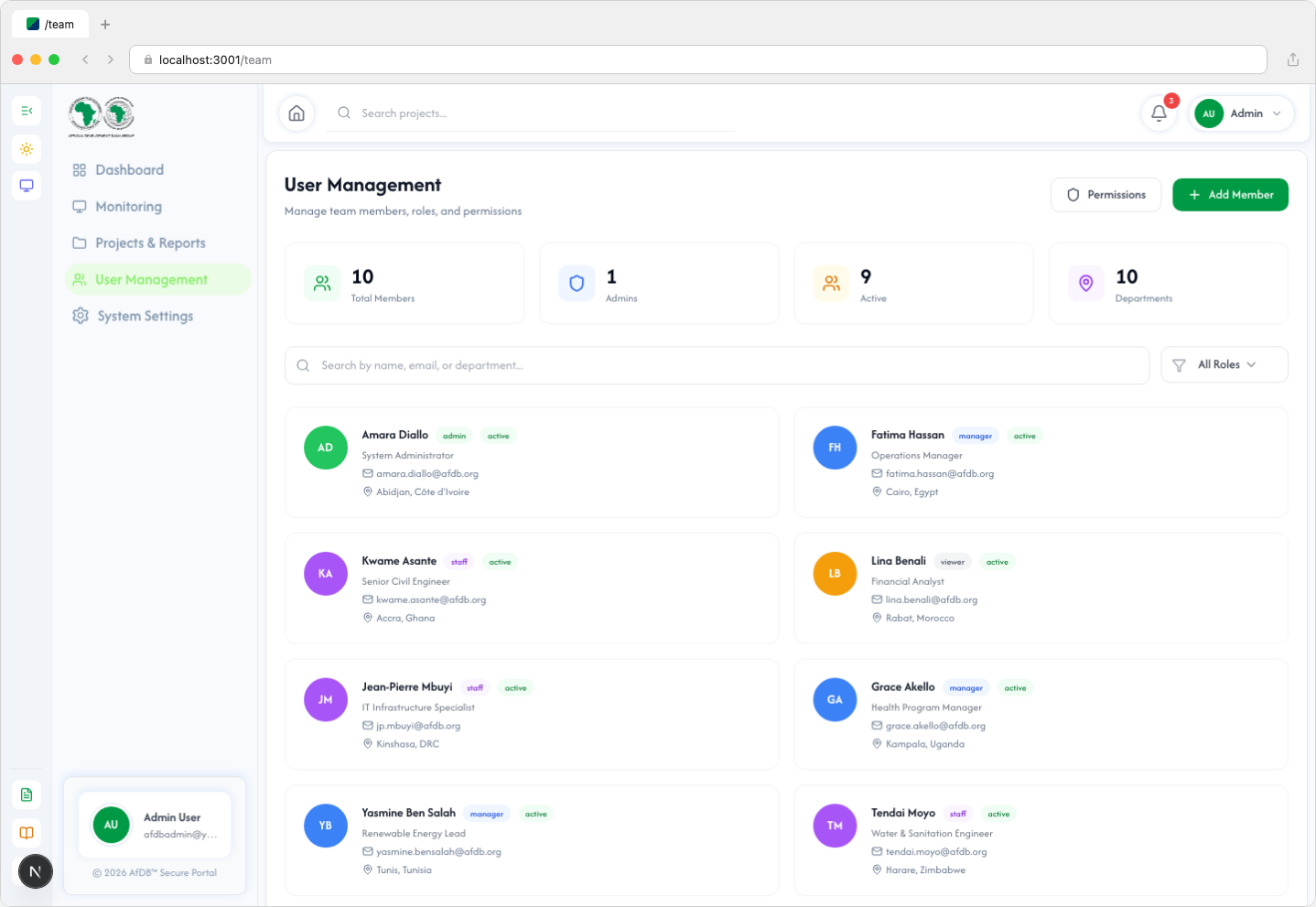
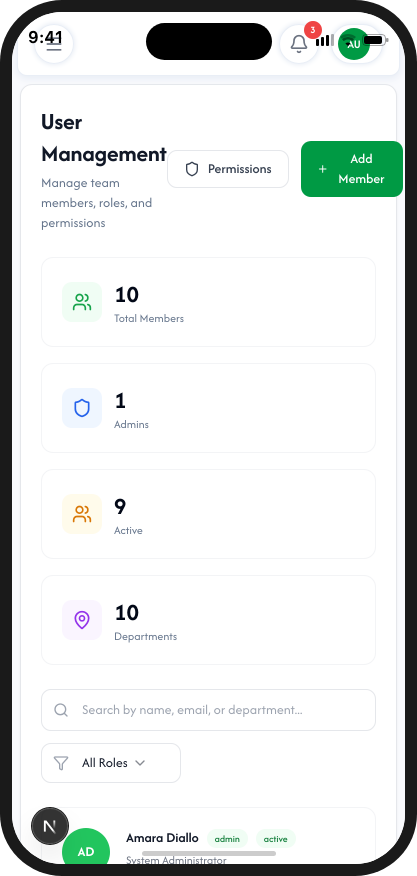
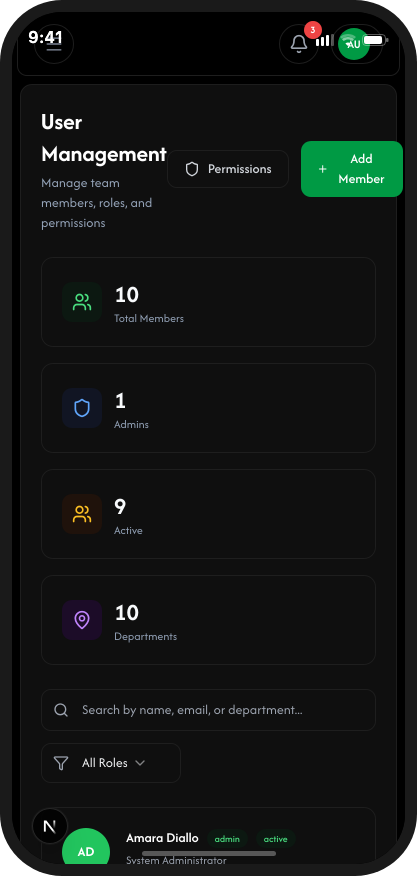
The Team page allows you to manage all team members, their roles, and permissions.
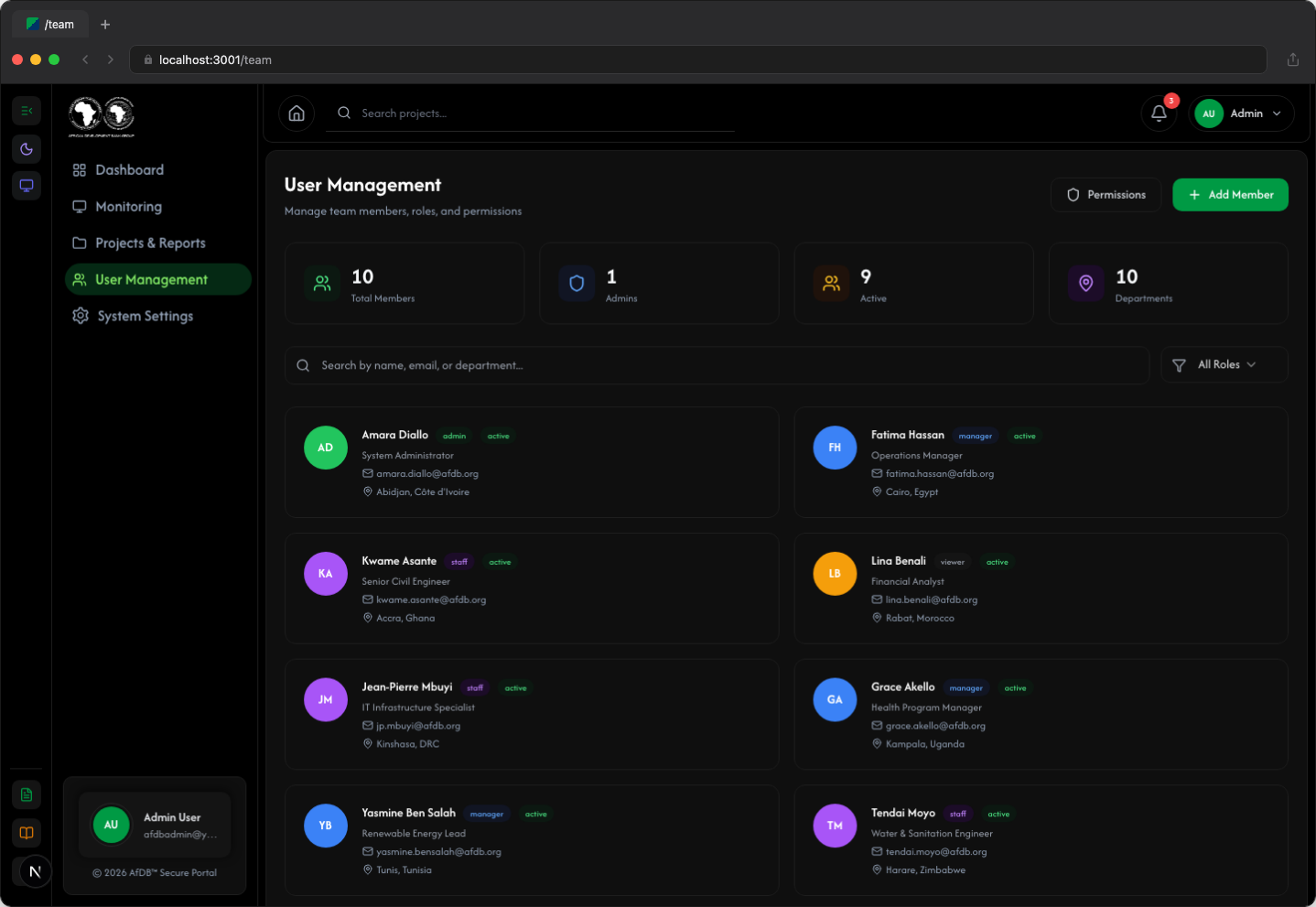
5.1 View Team Members
The team page displays all members in a table format with the following information:
- Name and email address
- Role (Admin, Manager, Viewer)
- Status (Active, Inactive)
- Last login date
Use the filter dropdown to filter team members by role.
5.2 Add a New Team Member
- Click the Add Member button on the Team page
- Fill in the member details:
- First Name and Last Name
- Email Address
- Role — Select from Admin, Manager, or Viewer
- Click Create Member
- A success notification will confirm the member was added
5.3 View Member Details
Click on any team member to view and edit their profile.

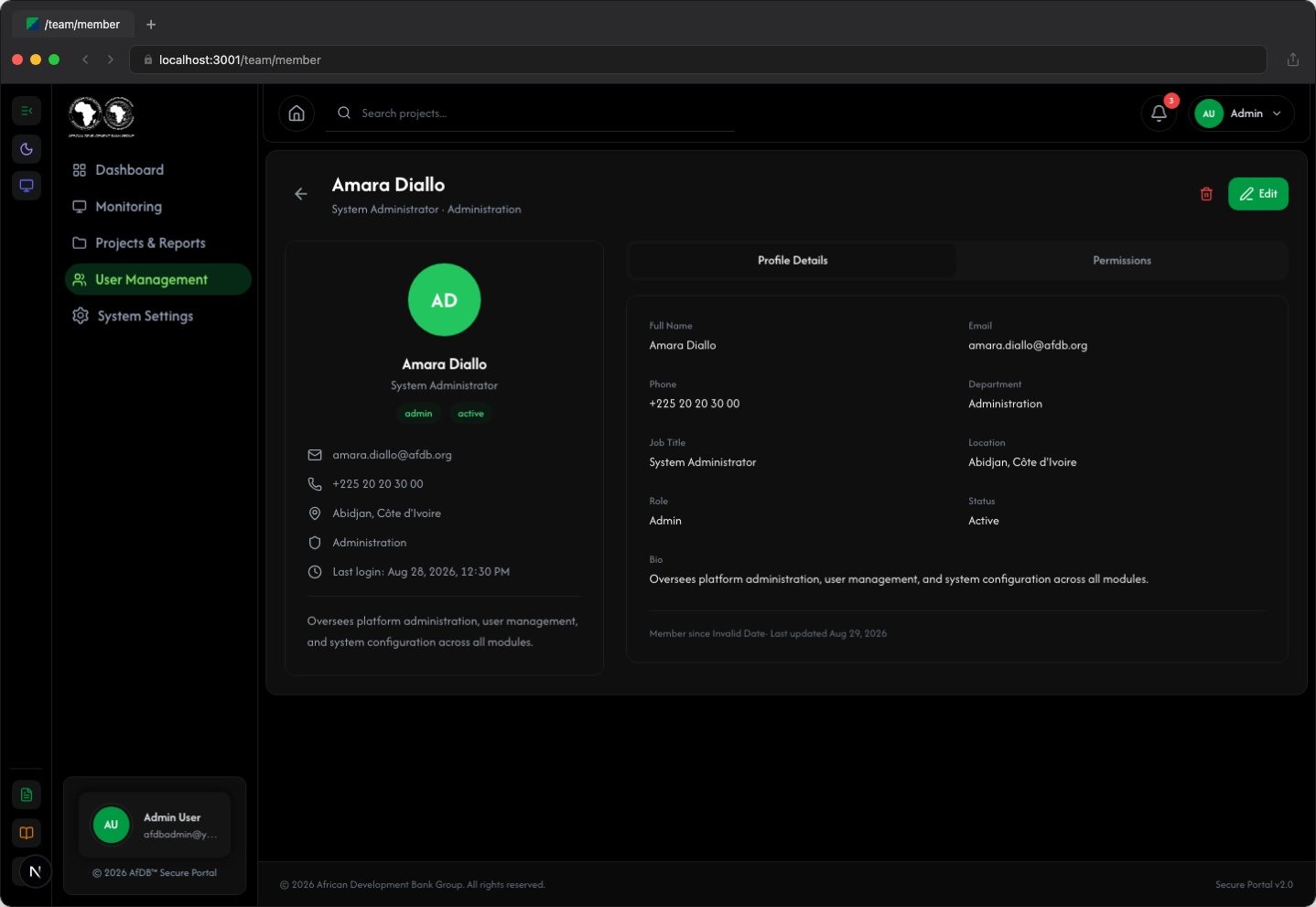
The member detail page includes:
- Profile Tab — View and edit personal information
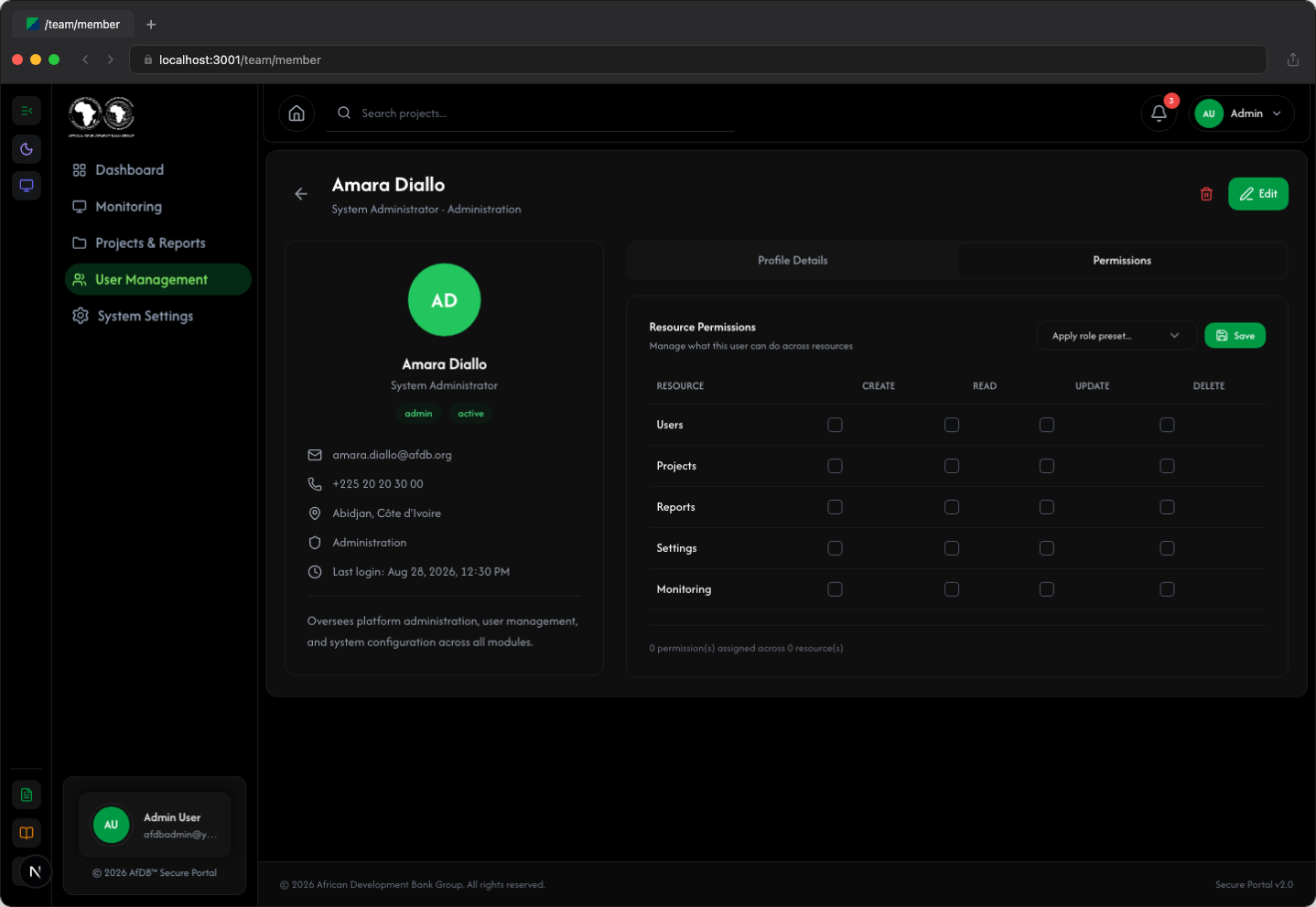
- Permissions Tab — Manage access rights for different resources
- Activity Tab — View the member's activity history
5.4 Manage Permissions
Control what resources each team member can access. There are two ways to manage permissions:
Permissions Modal (Bulk Edit)
Click the Permissions button on the Team page to open the permissions modal. This allows you to select any team member and configure their access rights across all resources at once.
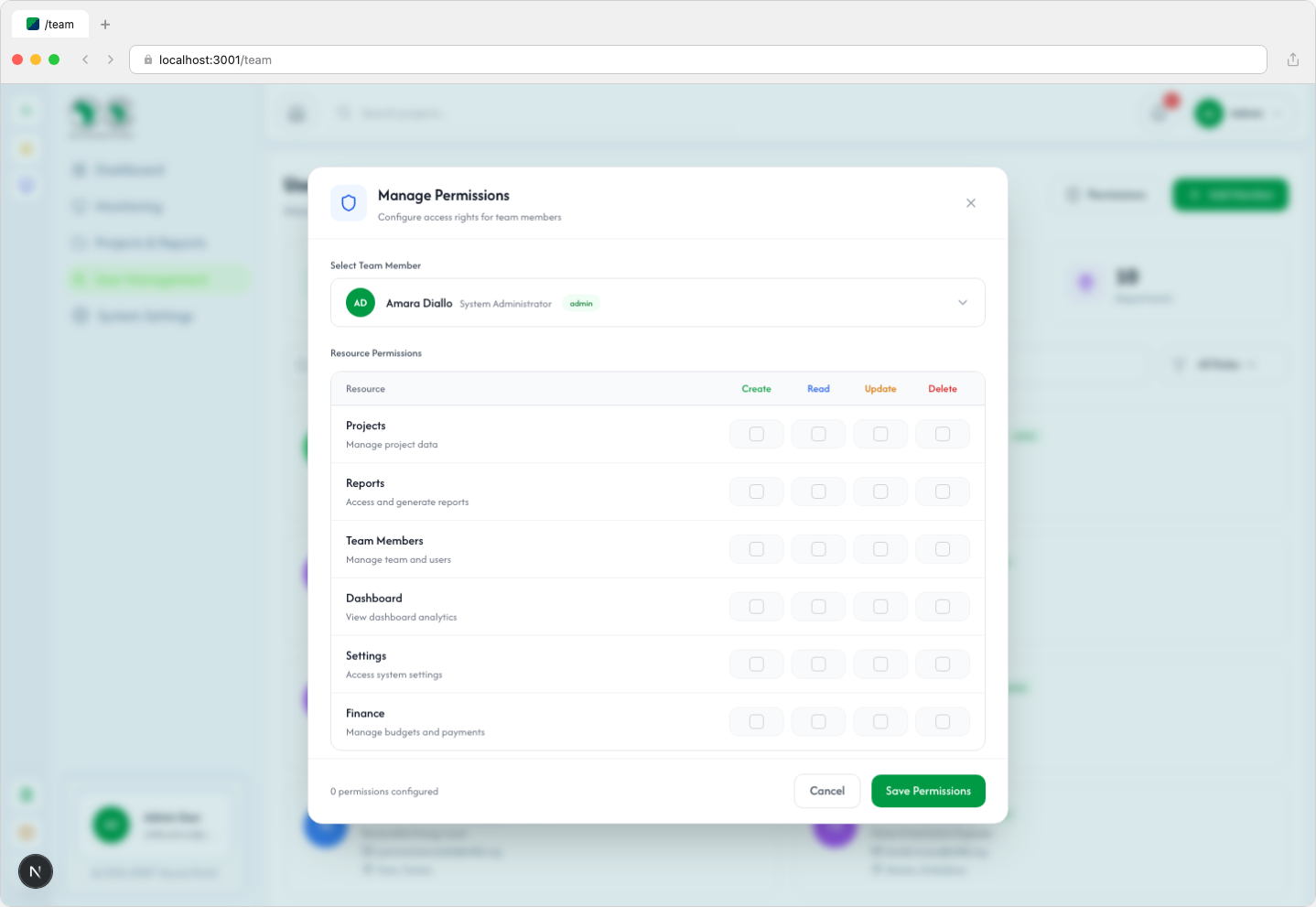

The modal includes a member selector dropdown at the top, followed by a permissions grid:
Permission Resources
| Resource | Description |
|---|---|
| Projects | Manage project data |
| Reports | Access and generate reports |
| Team Members | Manage team and users |
| Dashboard | View dashboard analytics |
| Settings | Access system settings |
| Finance | Manage budgets and payments |
Permission Actions
- Create — Ability to create new resources
- Read — Ability to view resources
- Update — Ability to modify existing resources
- Delete — Ability to remove resources
Use the quick action buttons to set common permission presets: Read All, Full Access, or Clear All.
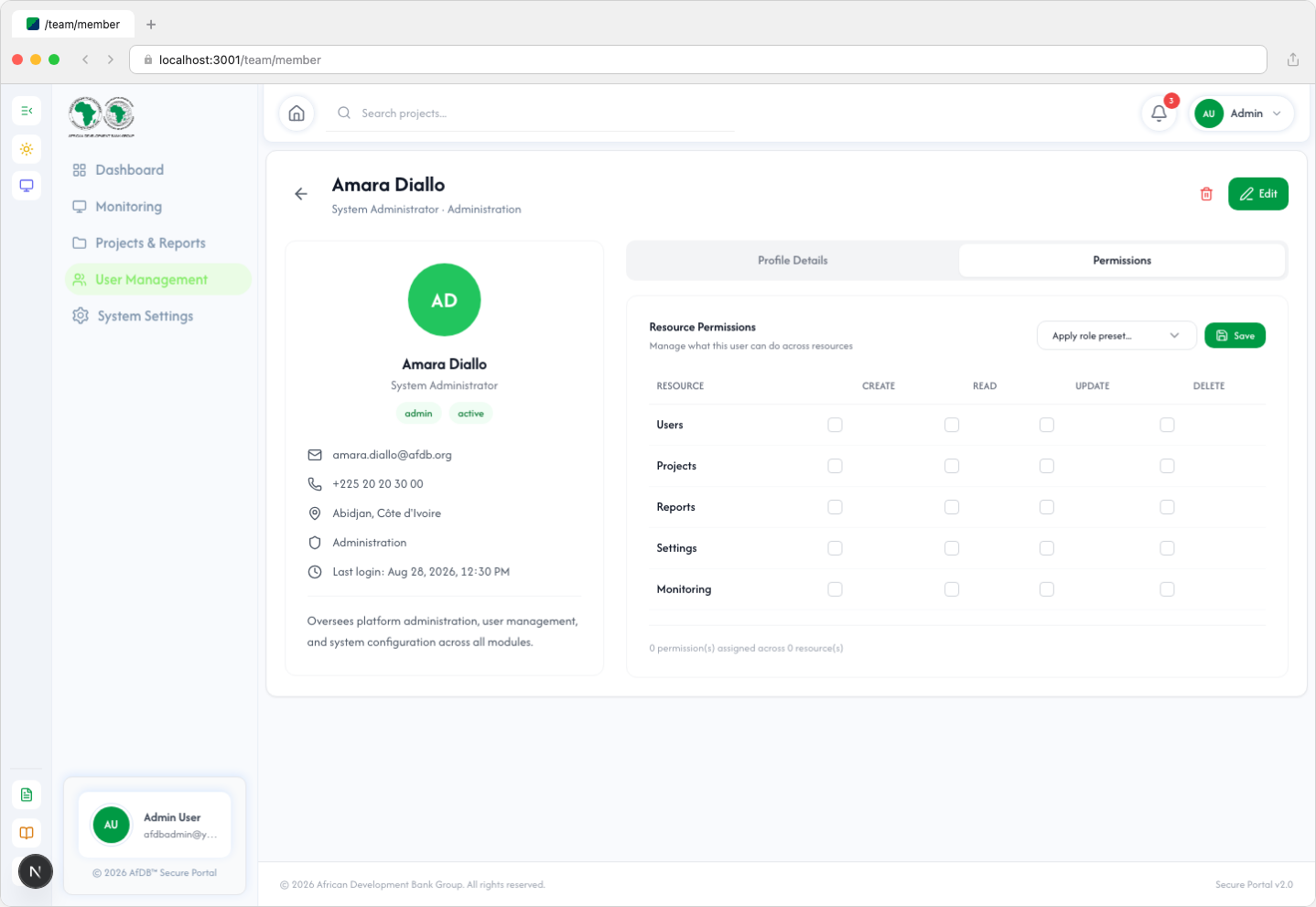
Permissions Tab (Per-Member)
Alternatively, click on any team member to open their detail page, then switch to the Permissions tab. This view shows the same resource/action matrix with a role preset dropdown to quickly apply standard permission sets (Admin, Manager, Staff, Viewer).
Reports
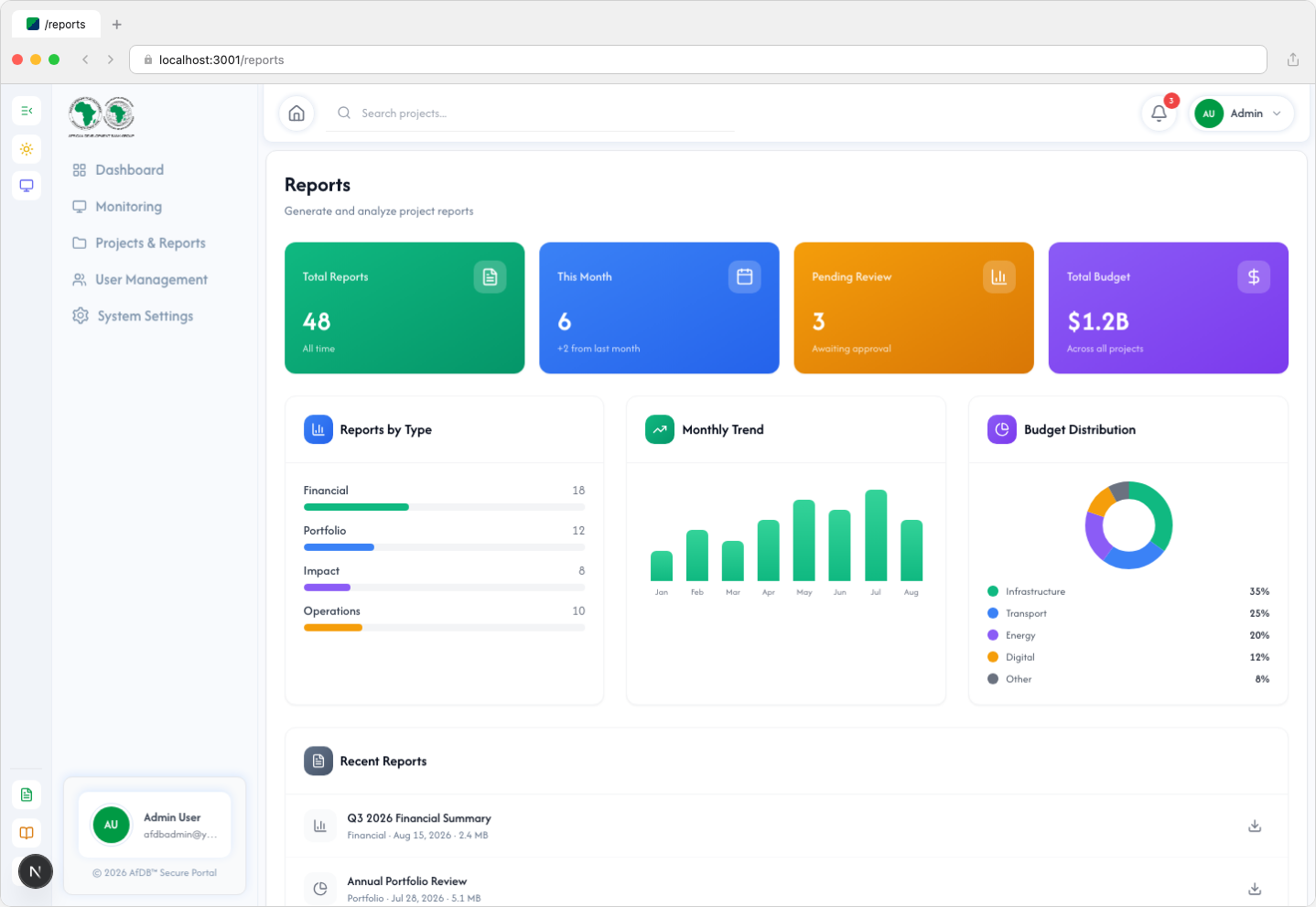
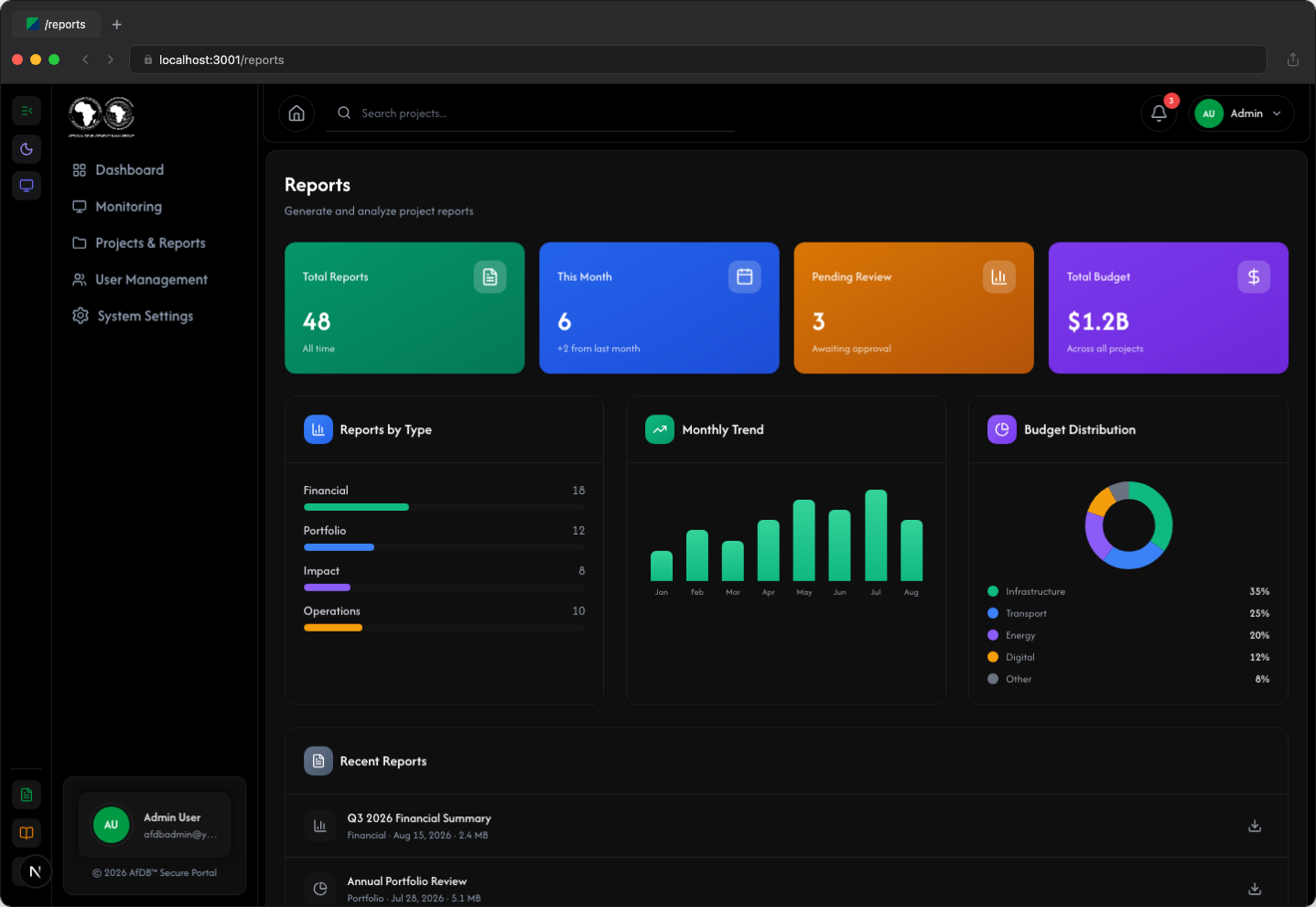
The Reports page allows you to generate and download comprehensive project reports.
6.1 Available Reports
| Report Type | Description |
|---|---|
| Project Summary | Overview of all projects with key metrics |
| Budget Report | Detailed budget allocation and spending |
| Team Activity | Log of all team member activities |
| Country Analysis | Projects grouped by member country |
| Sector Analysis | Projects grouped by sector |
6.2 Generate a Report
- Navigate to the Reports page
- Select the report type you want to generate
- Apply any filters (date range, country, sector)
- Click Generate Report
- Preview the report or click Download to save as PDF or Excel
Settings
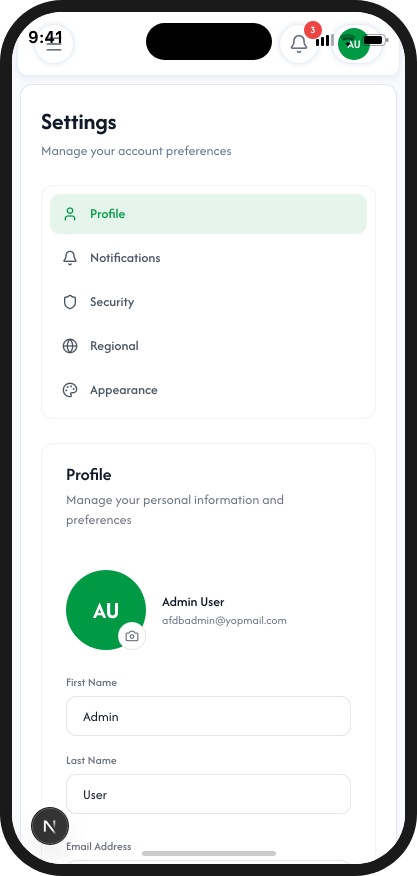
The Settings page allows you to manage your profile and system preferences.
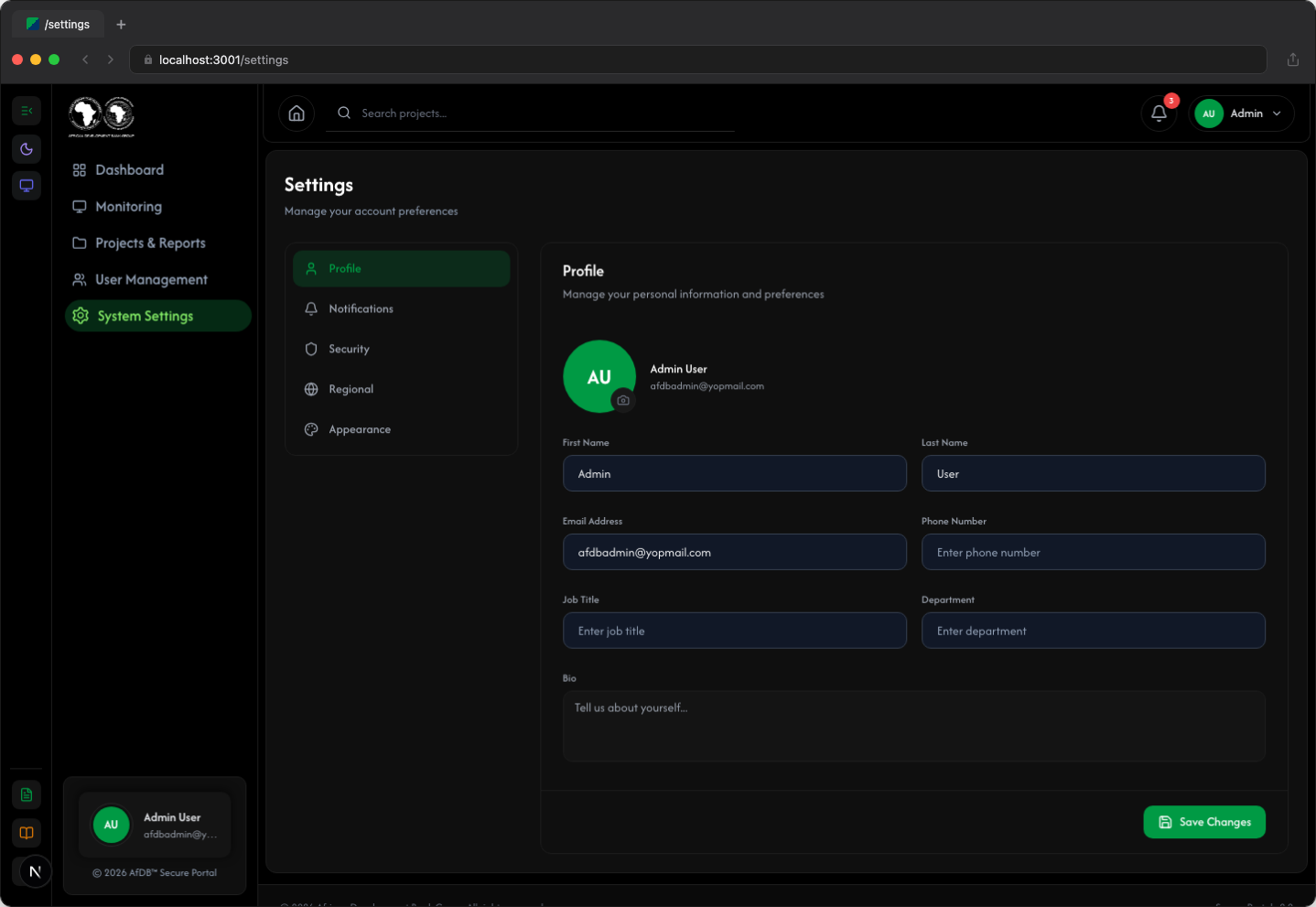
7.1 Profile Settings
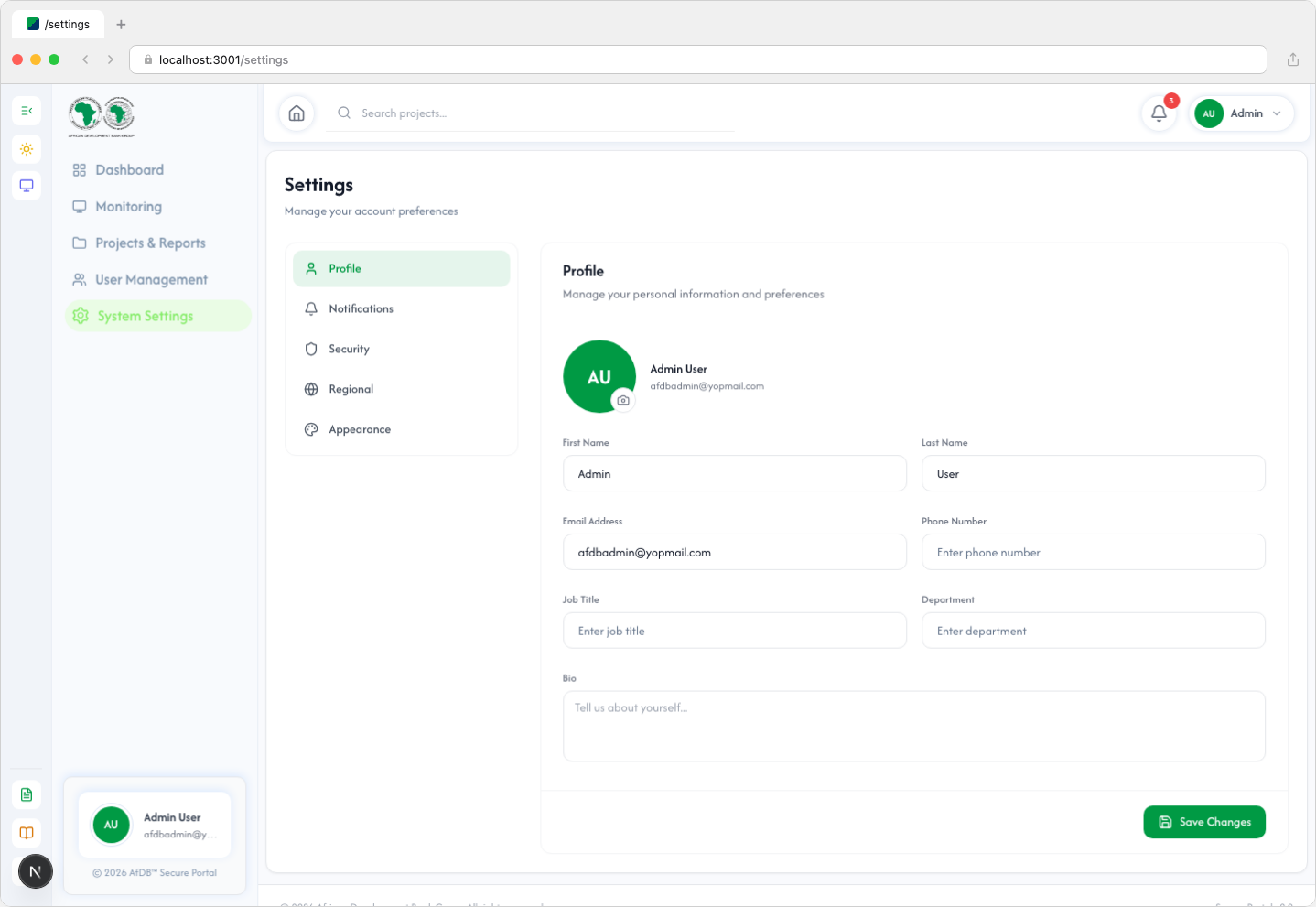
The Profile tab allows you to manage your personal information and account settings:
- Personal Information — Update your first name, last name, email, phone, job title, and department
- Change Password — Update your account password securely
- Two-Factor Authentication — Enable or disable 2FA for enhanced security
7.2 Notifications
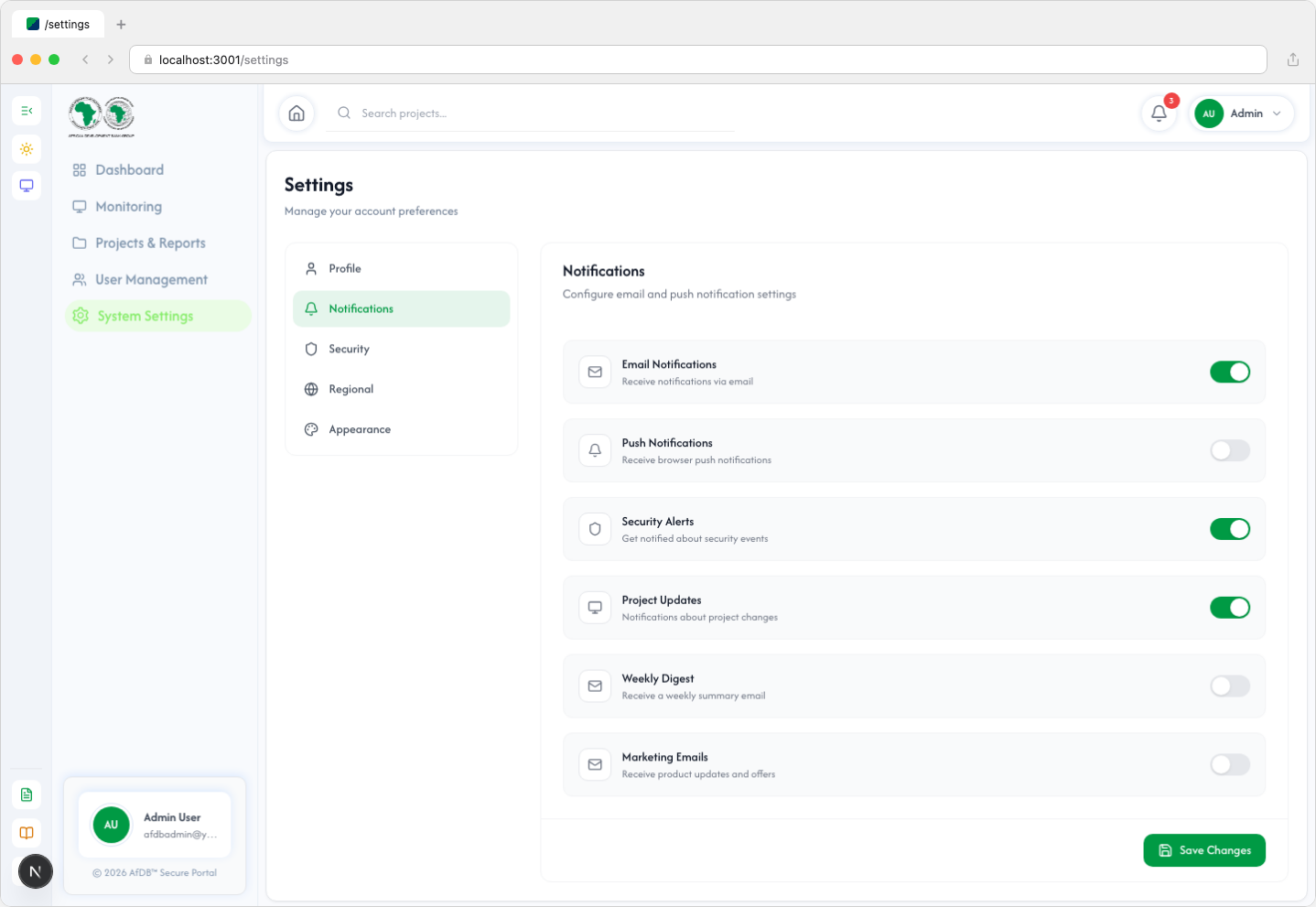
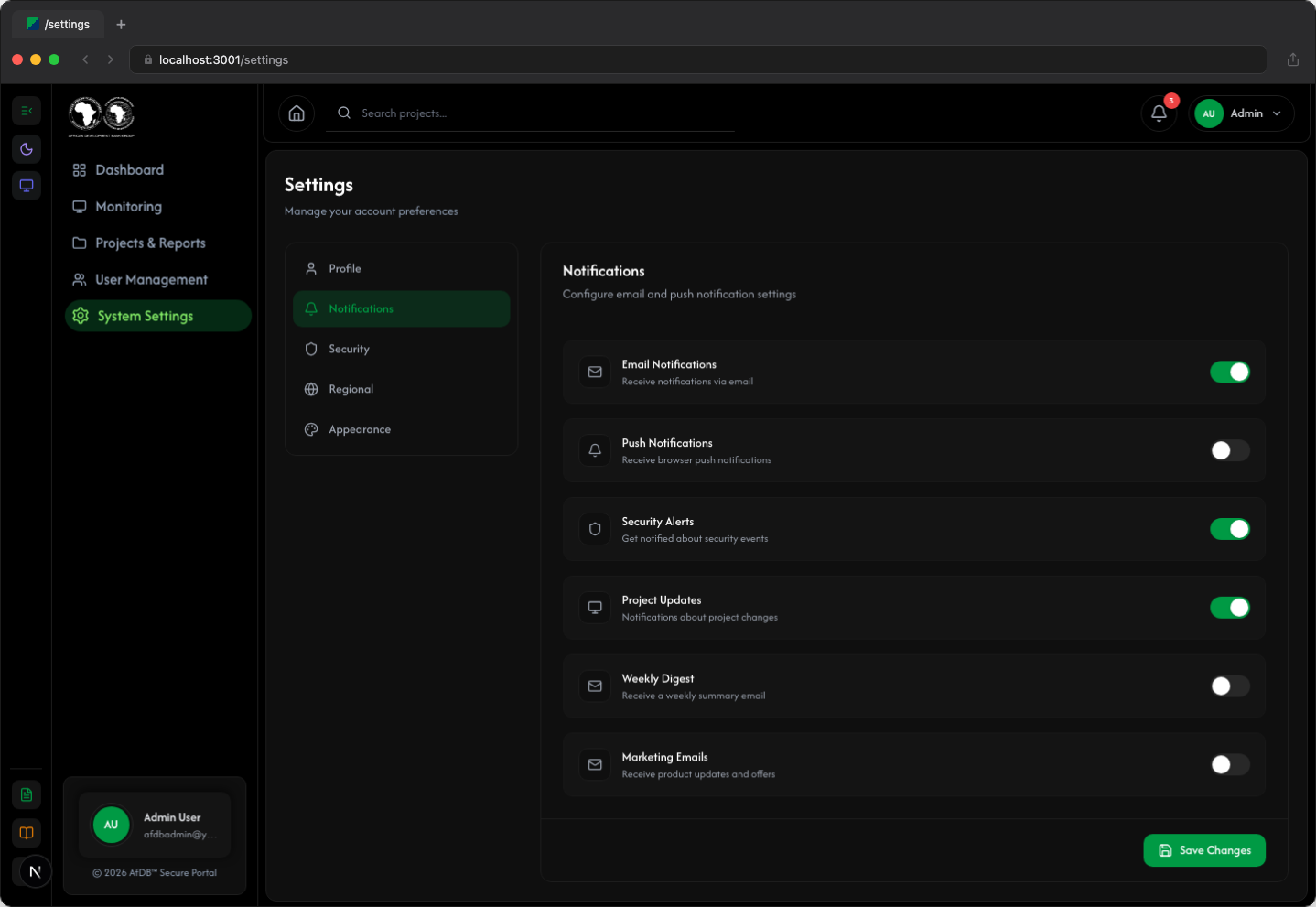
Configure your notification preferences:
- Email Notifications — Receive updates via email
- Push Notifications — Receive browser push notifications
- Security Alerts — Get notified about security events
- Project Updates — Stay informed about project changes
- Weekly Digest — Receive a weekly summary
7.3 Security
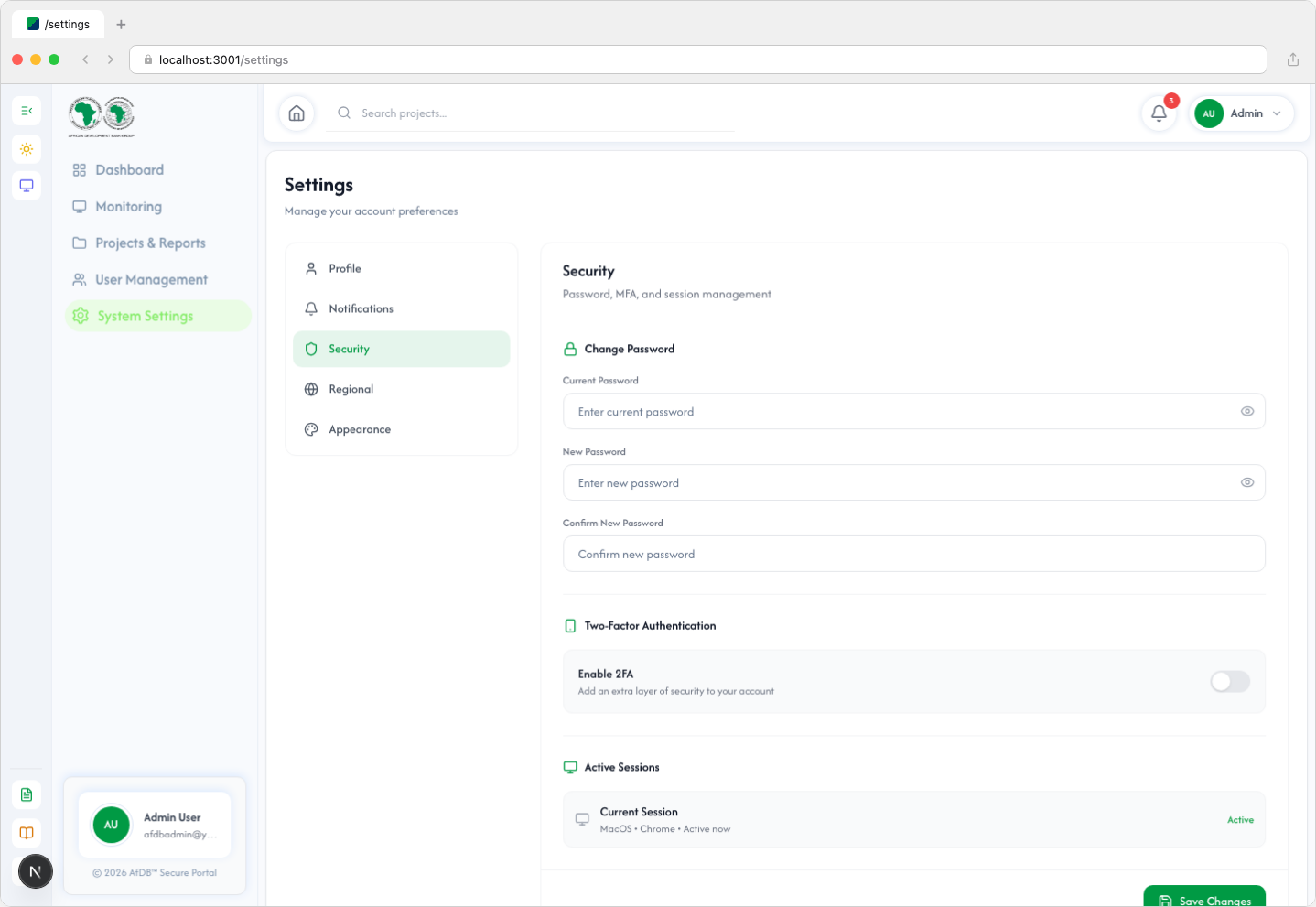
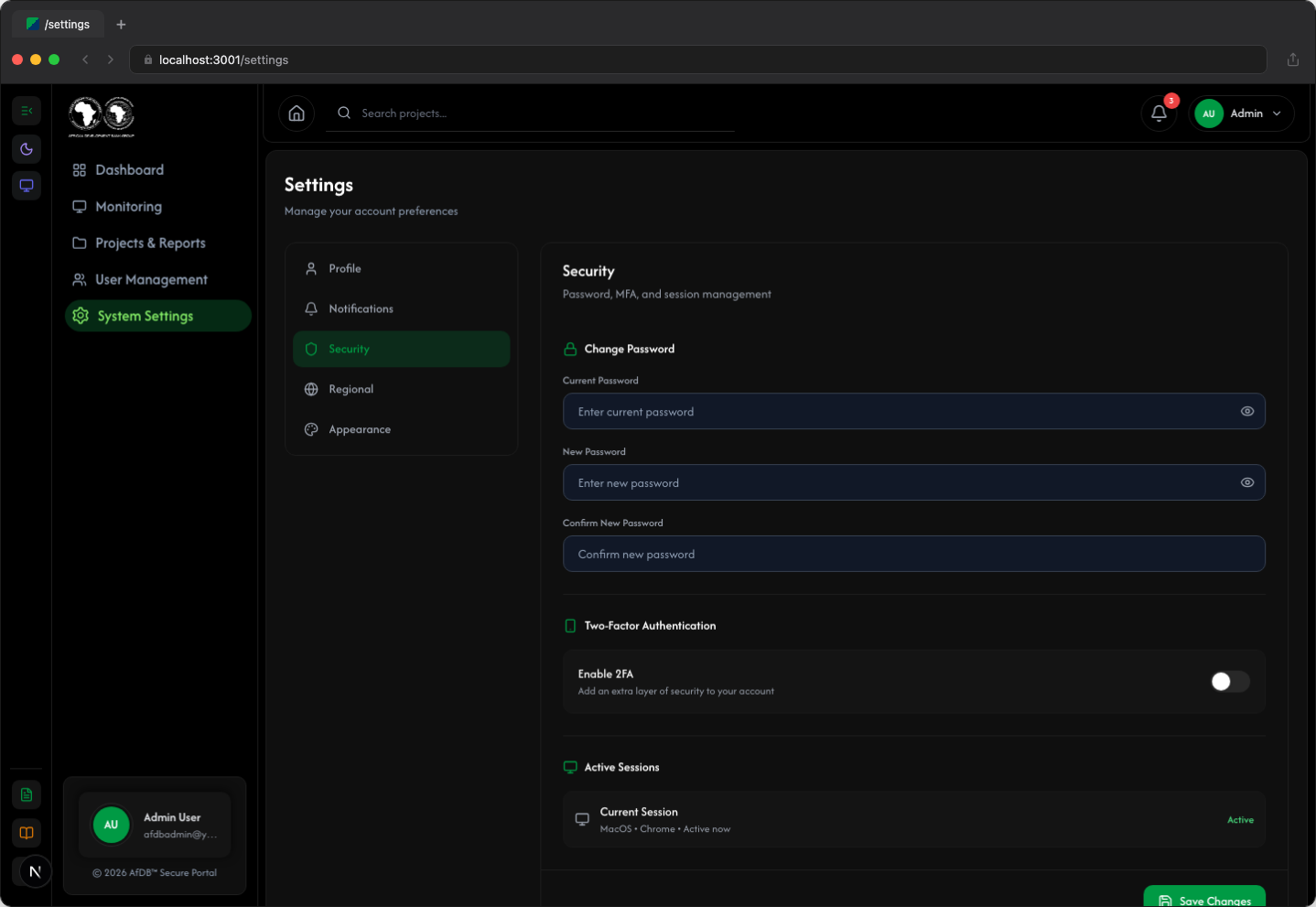
Manage your account security settings:
- Change Password — Update your current password
- Two-Factor Authentication — Add an extra layer of security
- Active Sessions — View and manage your active sessions
7.4 Regional
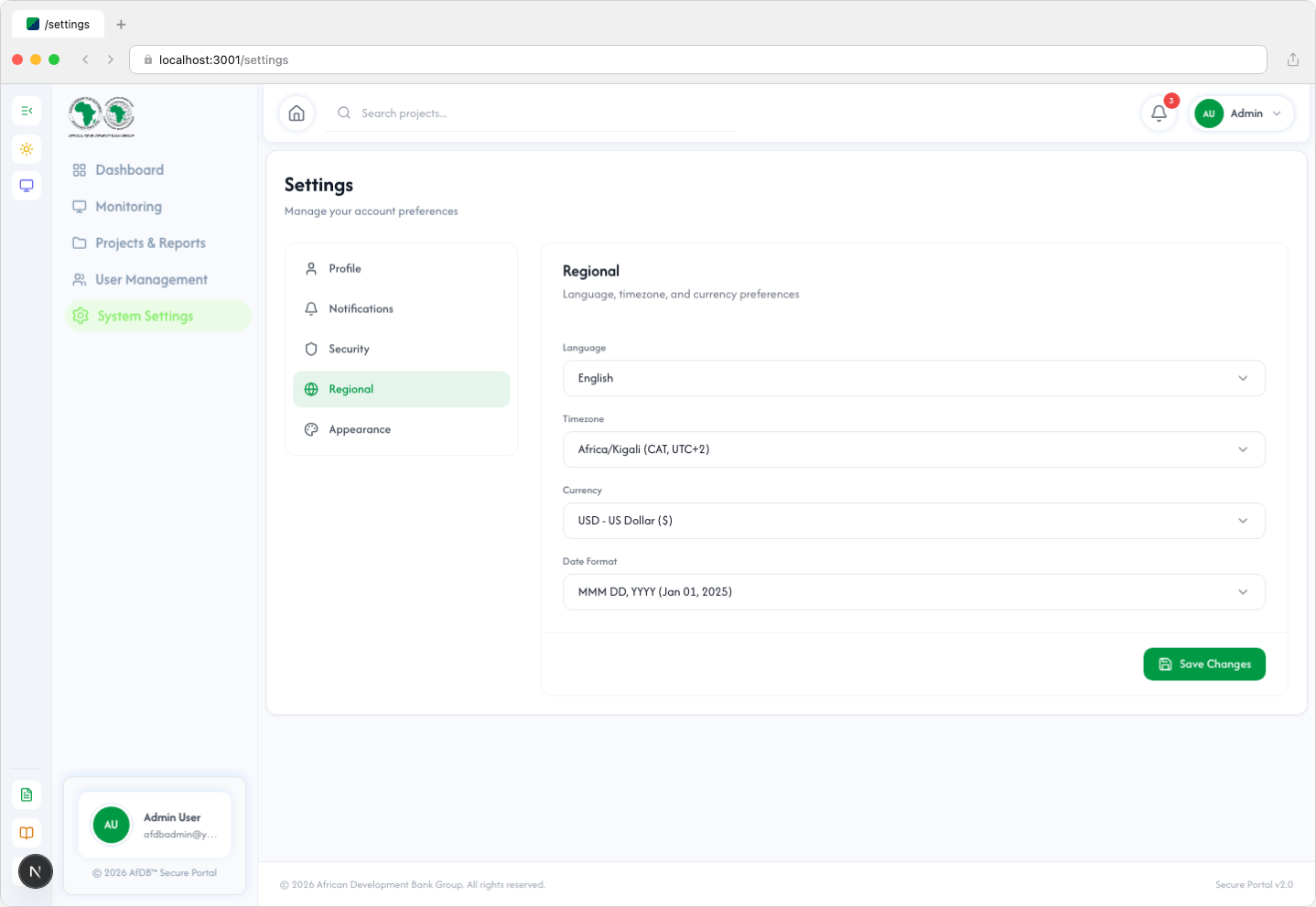
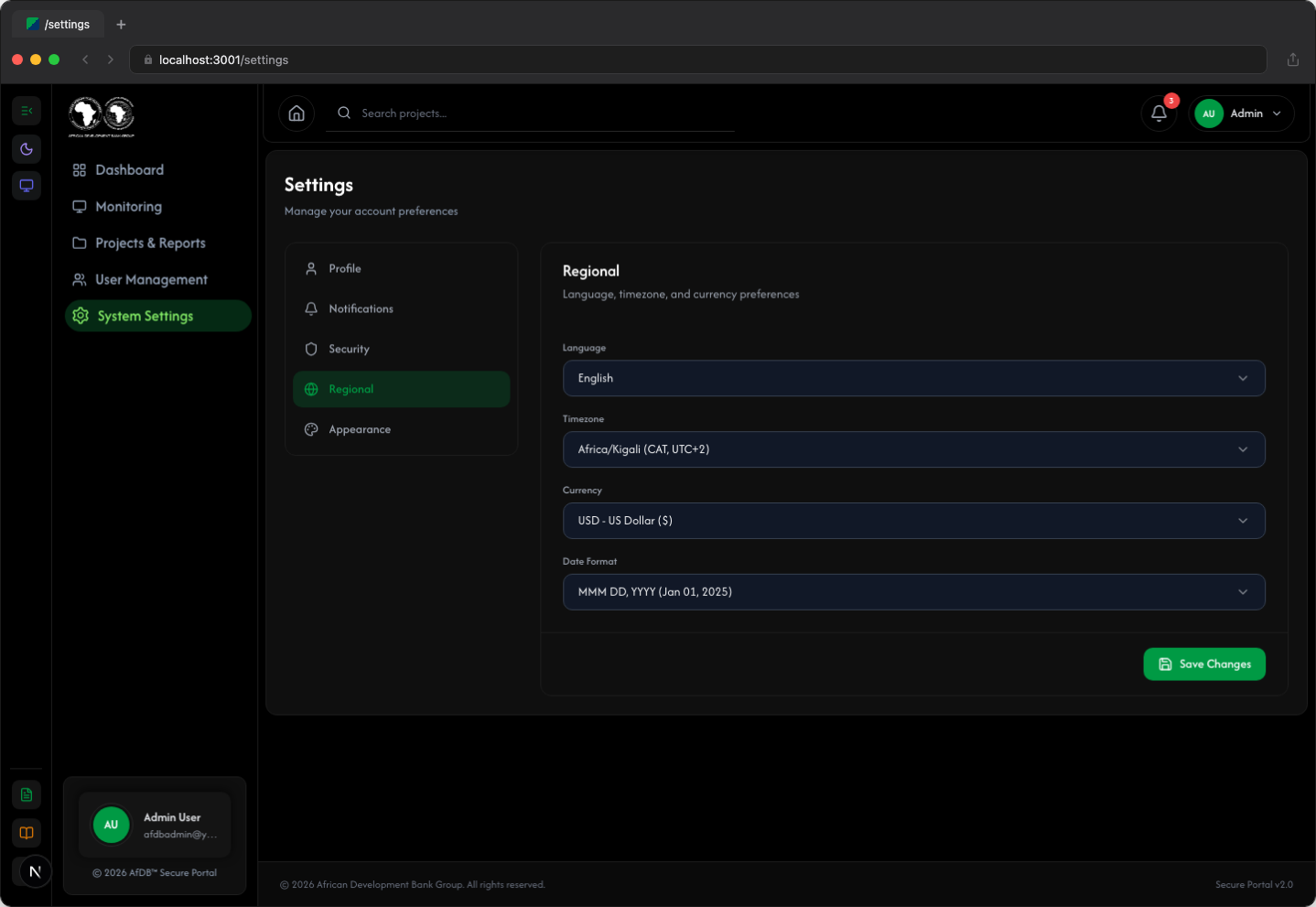
Customize your regional preferences:
- Language — Select your preferred display language
- Timezone — Set your local timezone for accurate timestamps
- Currency — Choose your preferred currency for financial displays
- Date Format — Select how dates are displayed
7.5 Appearance
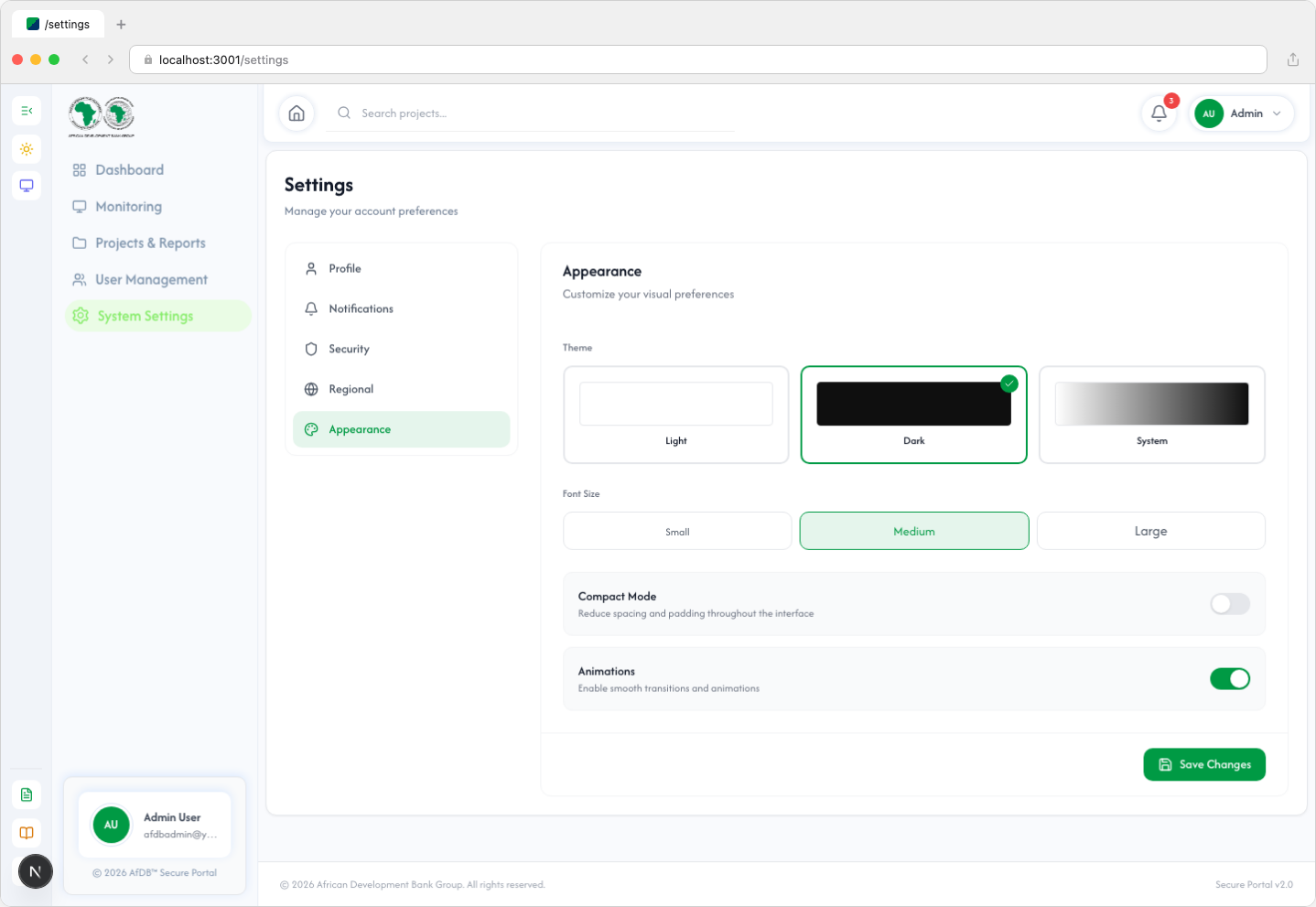
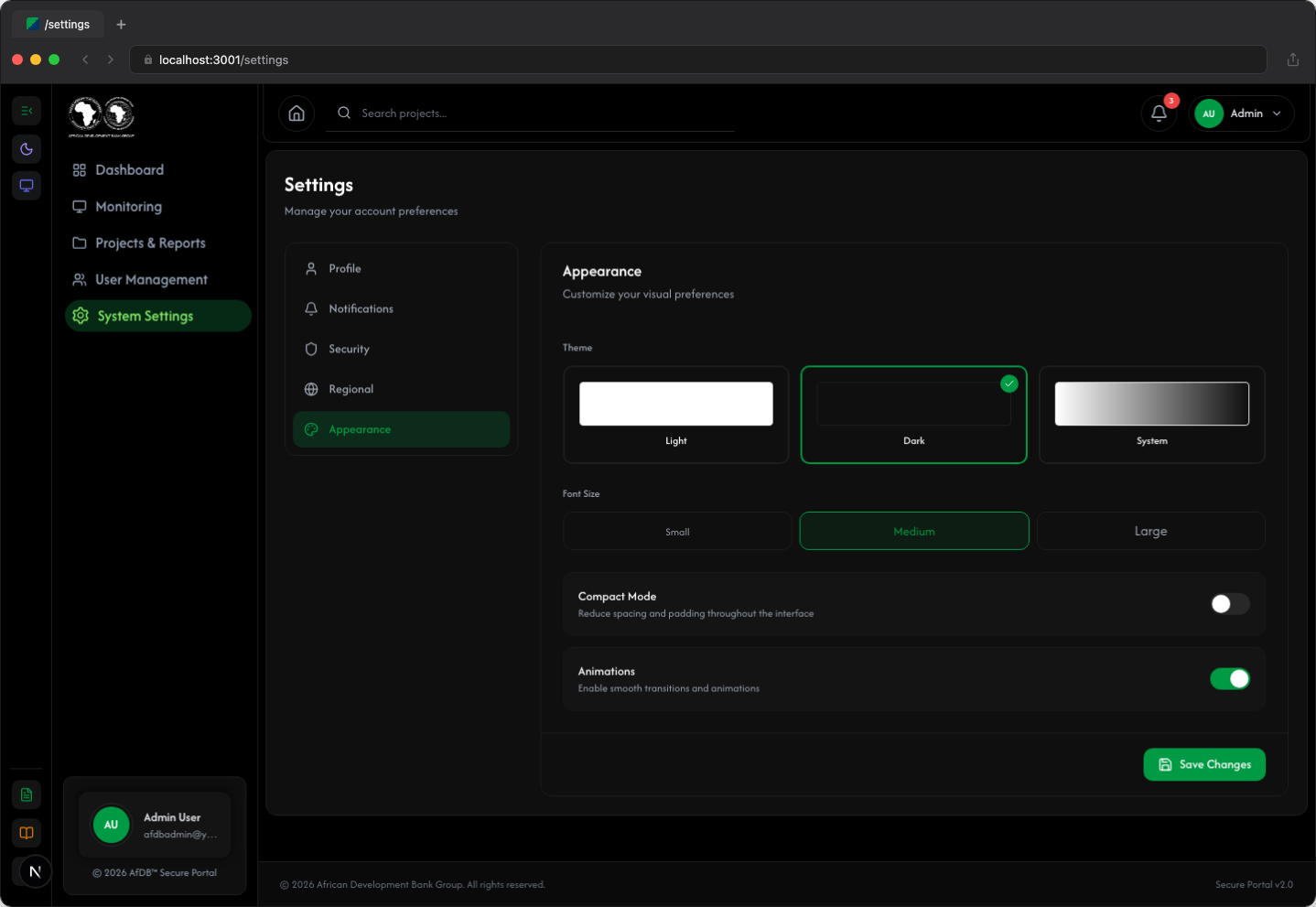
Customize the visual appearance of the application:
- Theme — Switch between Light, Dark, or System theme
- Compact Mode — Reduce spacing for a more compact view
Mobile View
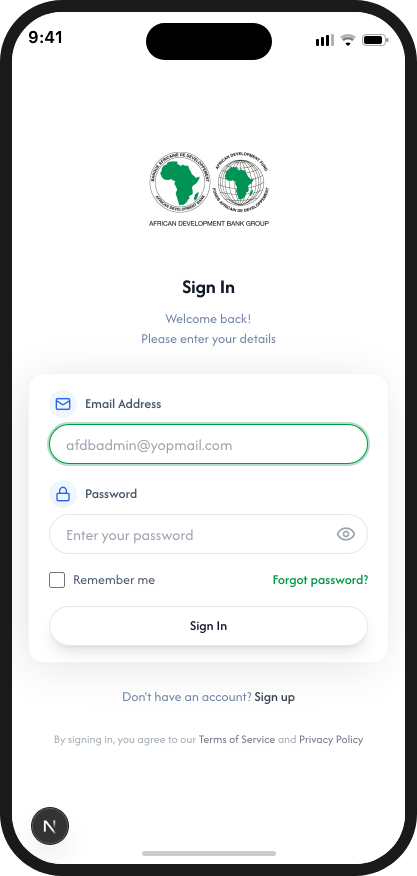
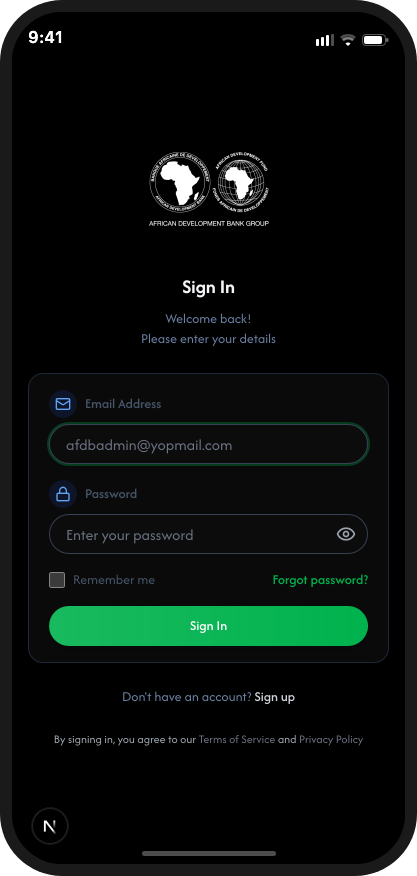
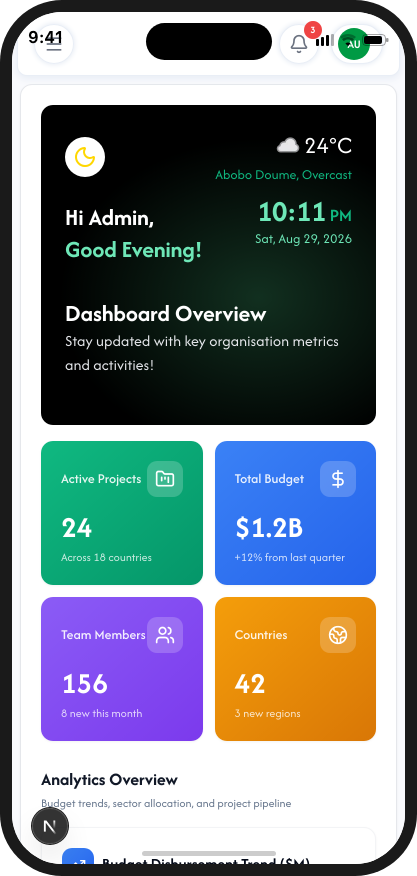
The AfDB Project System is fully responsive and adapts seamlessly to mobile devices. Below are screenshots captured on an iPhone 17 Pro showing the experience in both light and dark modes.
8.1 Login
8.2 Dashboard
8.3 Team Management
8.4 Member Details


8.5 Settings

Troubleshooting
Common issues and their solutions.
9.1 Login Issues
| Problem | Solution |
|---|---|
| "Invalid credentials" error | Verify your email and password. Check for caps lock. |
| "Account locked" error | Wait 15 minutes or contact IT support to unlock. |
| Not receiving OTP code | Check spam folder. Click "Resend Code". Contact IT if issue persists. |
| Page not loading | Check your internet connection. Clear browser cache. Try a different browser. |
9.2 Performance Issues
| Problem | Solution |
|---|---|
| Slow page load | Clear browser cache. Check internet speed. Try incognito mode. |
| Search not working | Ensure you're connected to the network. Refresh the page. |
| Reports not generating | Check your permissions. Contact administrator if issue persists. |
AI Chat Assistant
The AI Chat Assistant provides instant help with platform navigation, features, and common questions. It combines an intelligent chatbot with the ability to connect you to a live team member when needed.
10.1 Opening the Chat Widget
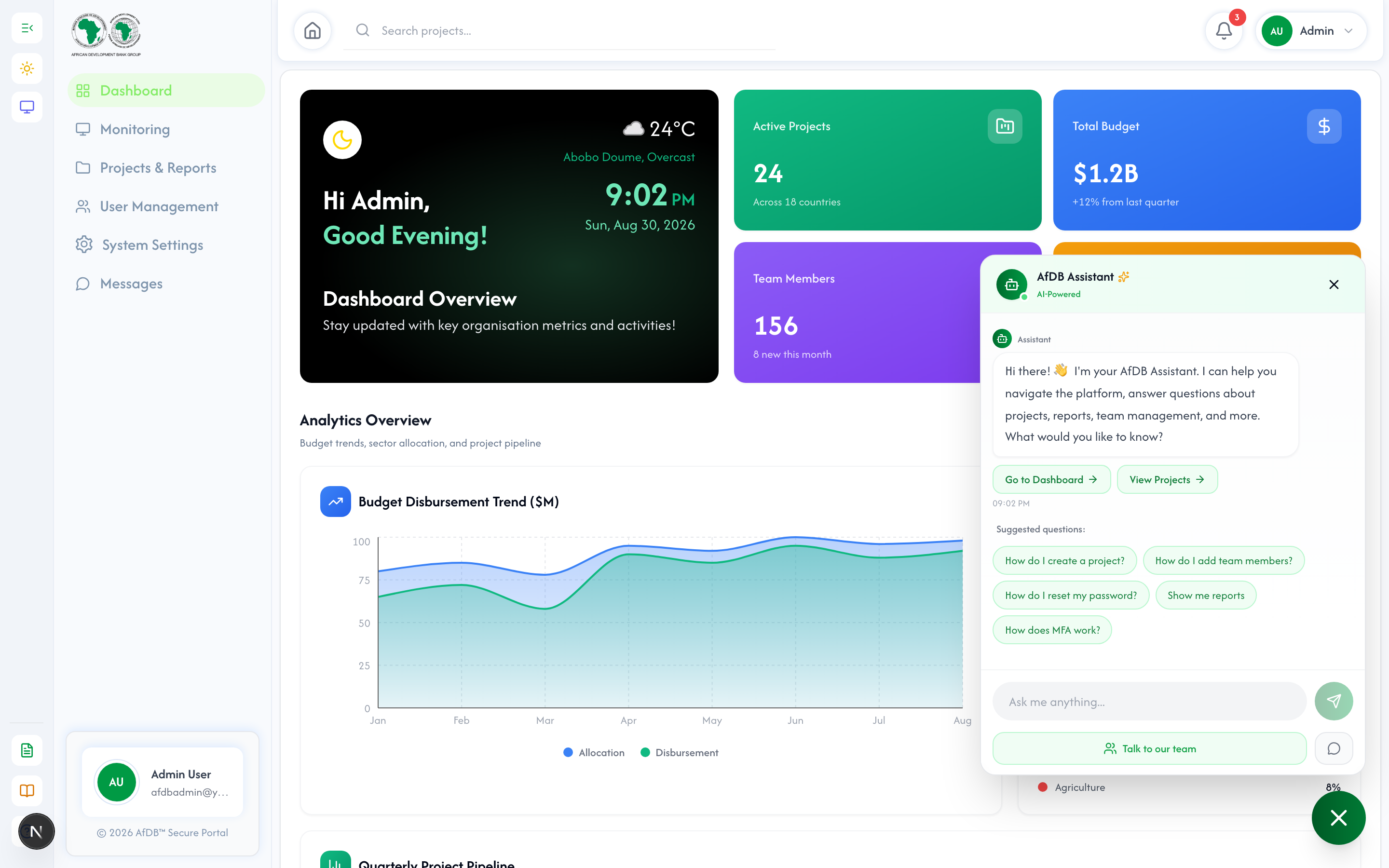
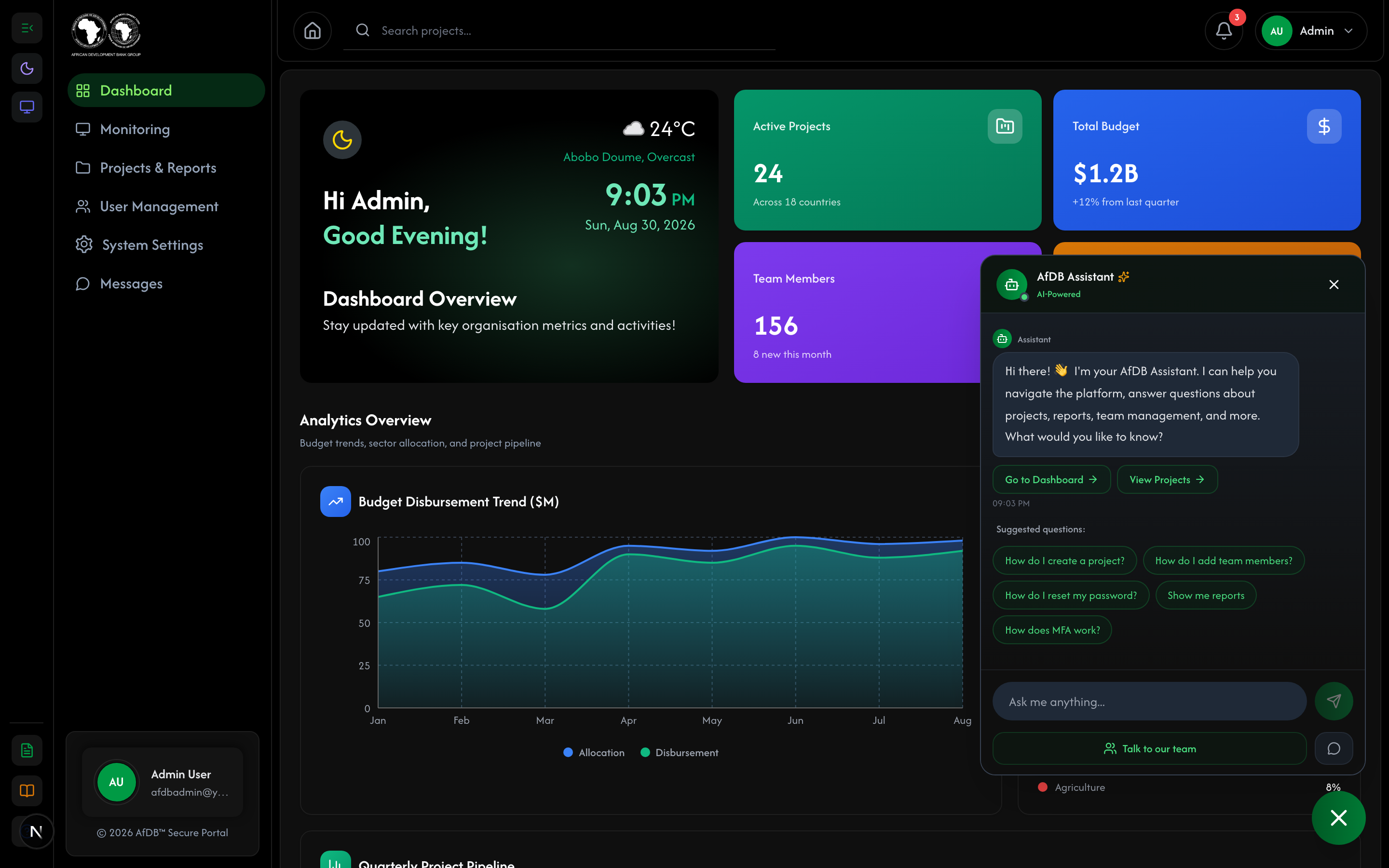
The chat widget is accessible from any page via the green chat bubble in the bottom-right corner of the screen.
- Look for the green chat bubble icon in the bottom-right corner of any page
- Click the bubble to open the chat widget
- The AI Assistant will greet you with quick-access links and suggested questions
10.2 Asking Questions
The AI Assistant can answer questions about platform features, navigation, settings, and more. Simply type your question or click one of the suggested questions.
- Click on the text input at the bottom of the chat widget
- Type your question (e.g., "How do I create a project?")
- Press Enter or click the send button
- The AI will respond with a helpful answer and actionable links to navigate directly to relevant pages
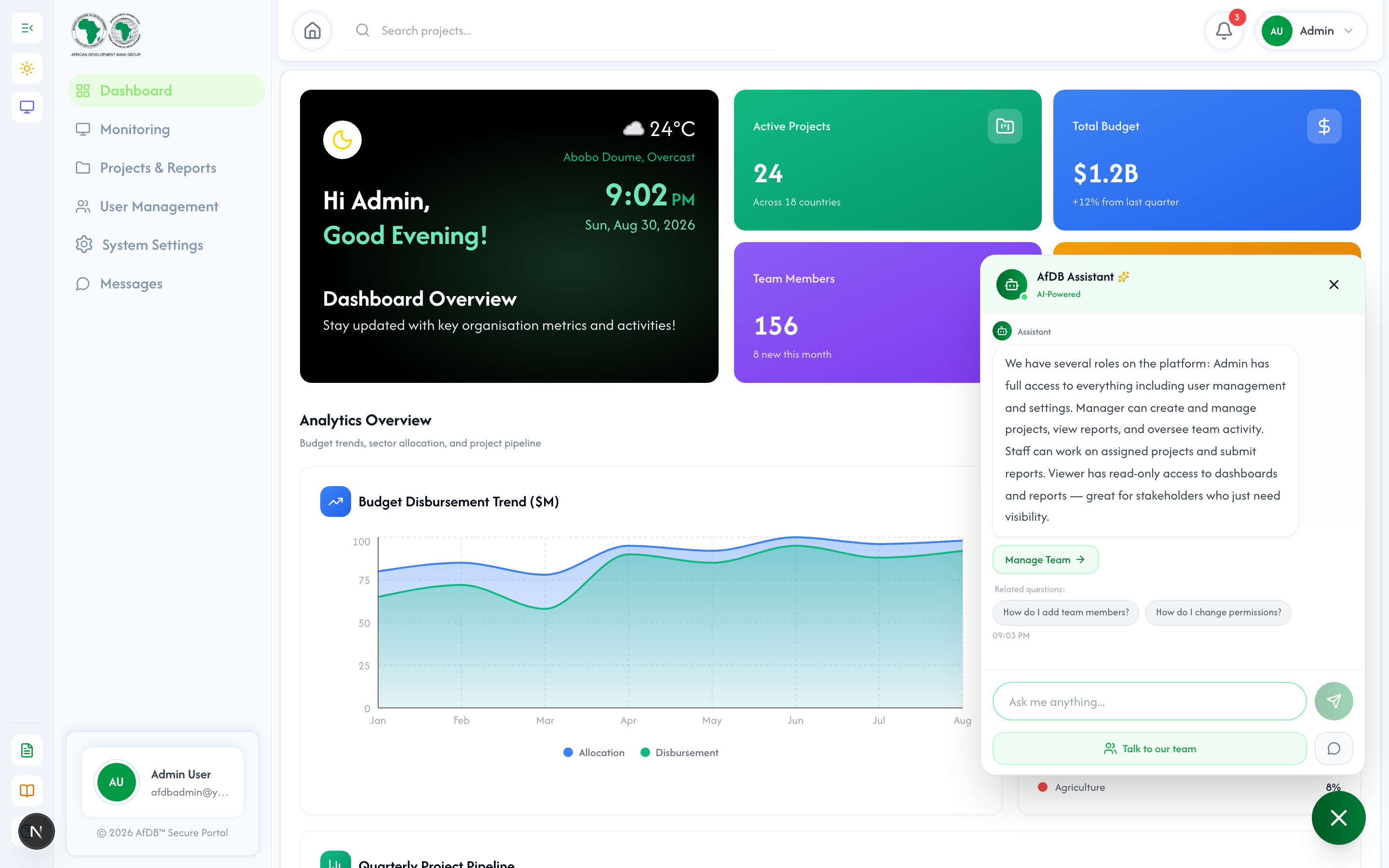
- Use the follow-up suggestions that appear below the response to continue the conversation
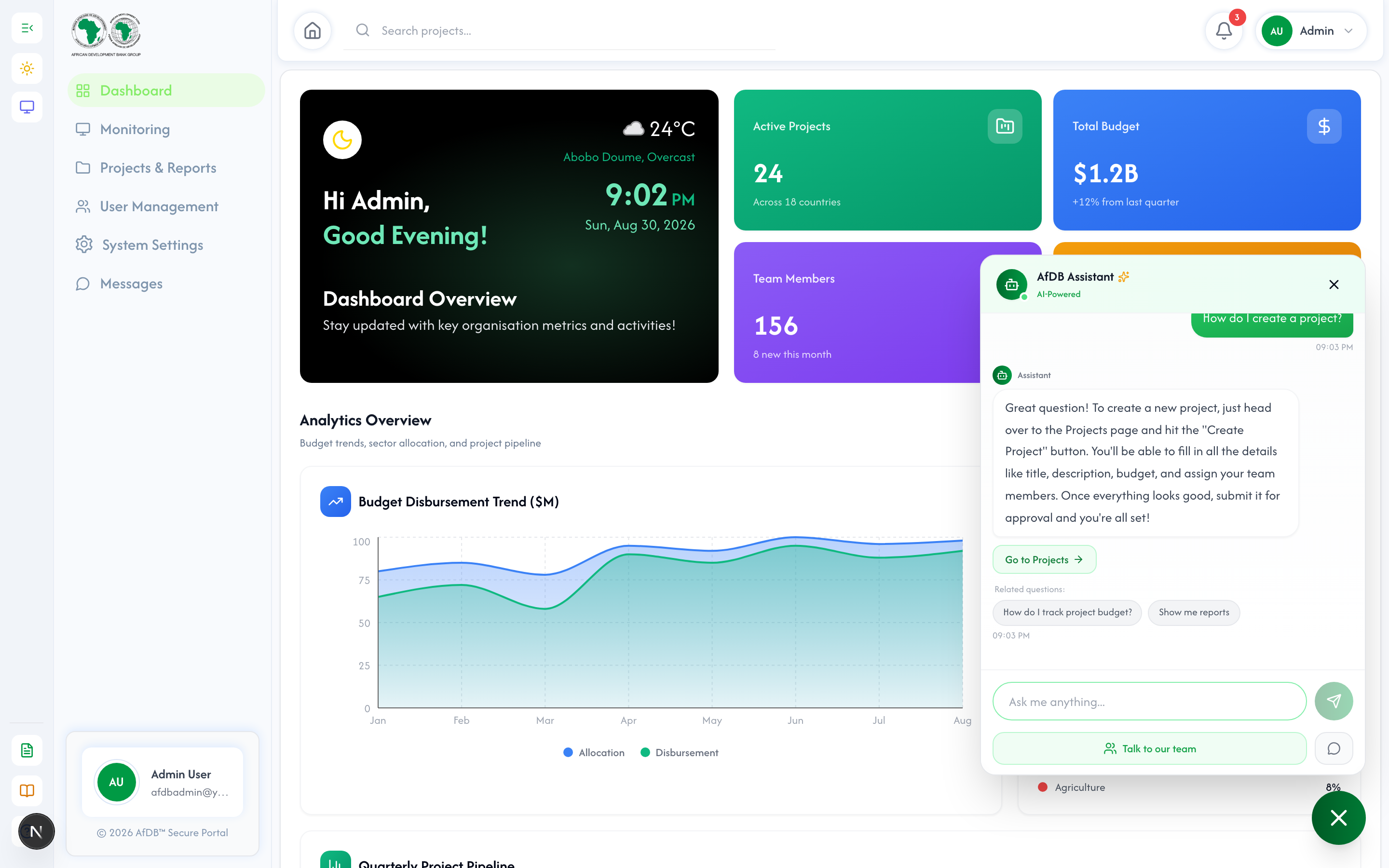
When the AI Assistant refers to a page (e.g., "Go to Projects"), it provides a clickable link button that takes you directly to that page. You don't need to manually navigate — just click the link!
10.3 Follow-Up Questions
After each answer, the AI suggests related questions you might want to ask. These follow-up suggestions help you explore topics in depth without having to think of what to ask next.
10.4 Talking to a Human
If the AI Assistant cannot answer your question, or if you prefer human assistance, you can seamlessly switch to live chat with a team member.
- If the AI doesn't have an answer, it will suggest you "Talk to our team" with a clickable button
- Click "Talk to our team" to switch from AI bot mode to the live conversations list
- Select a team member from the list to start a direct message conversation
- Your conversation history with the AI remains available when you switch back
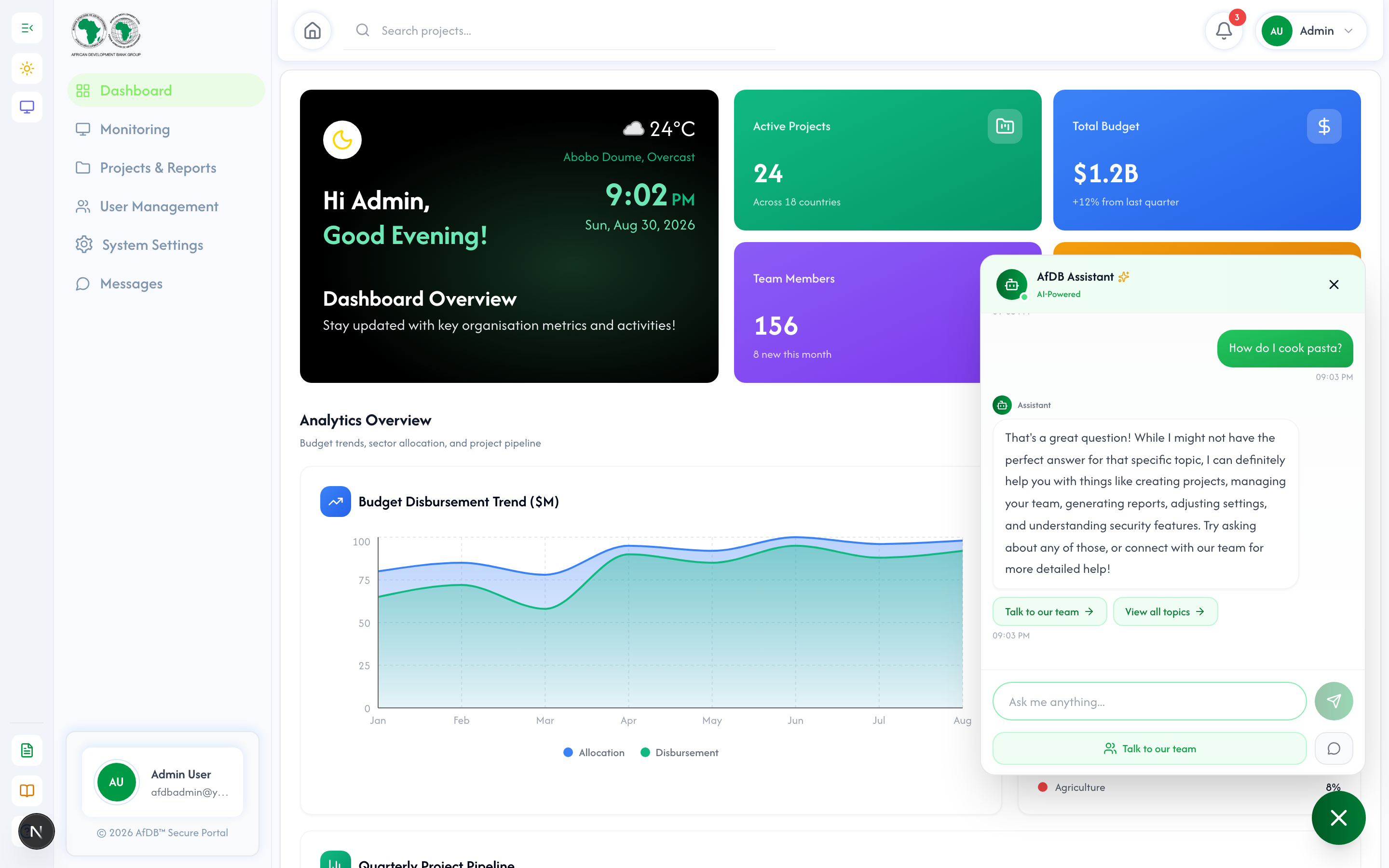
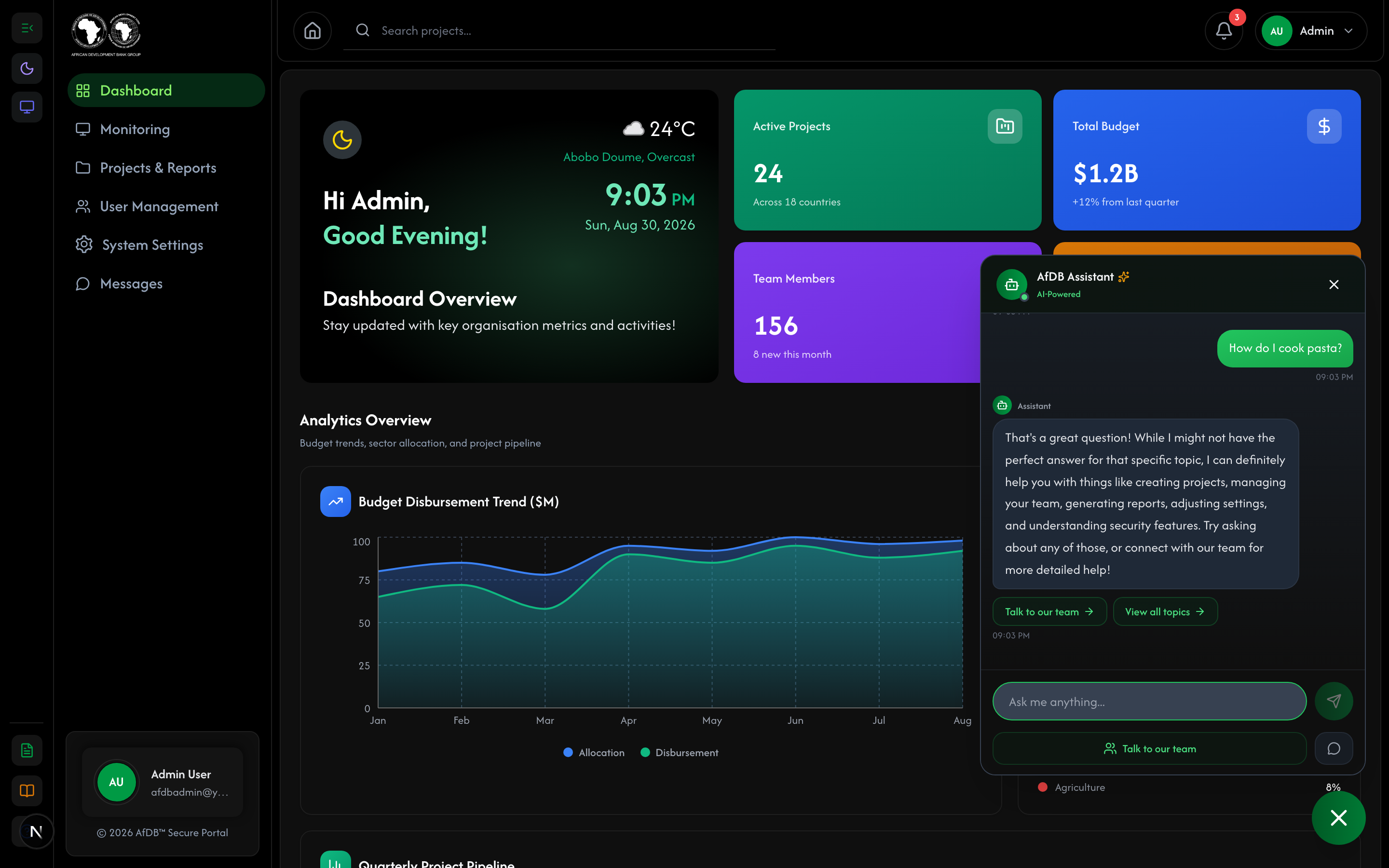
10.5 Live Chat Conversations
When you switch to live chat, you'll see a list of team members available for messaging. Select a user to start a real-time conversation.
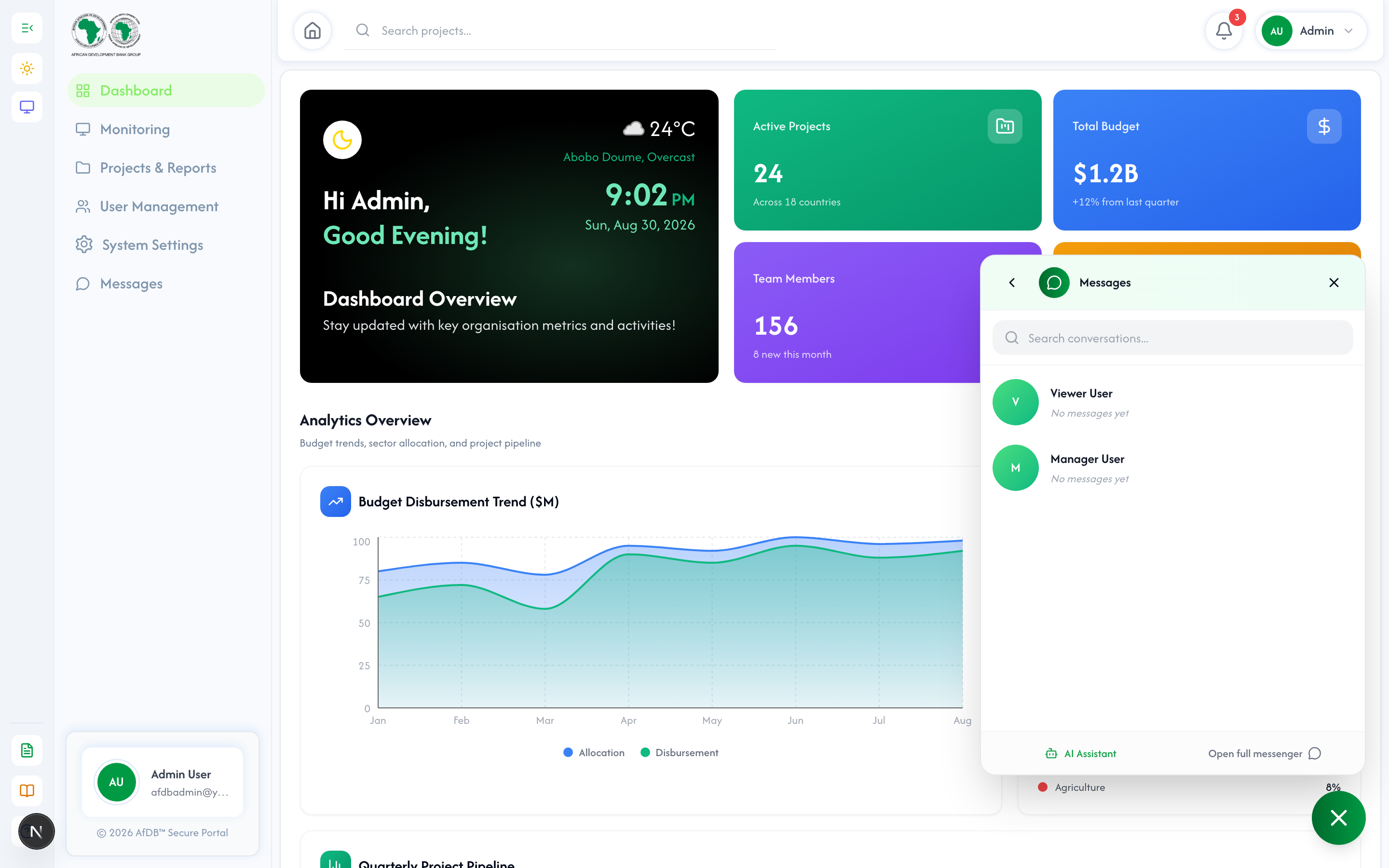
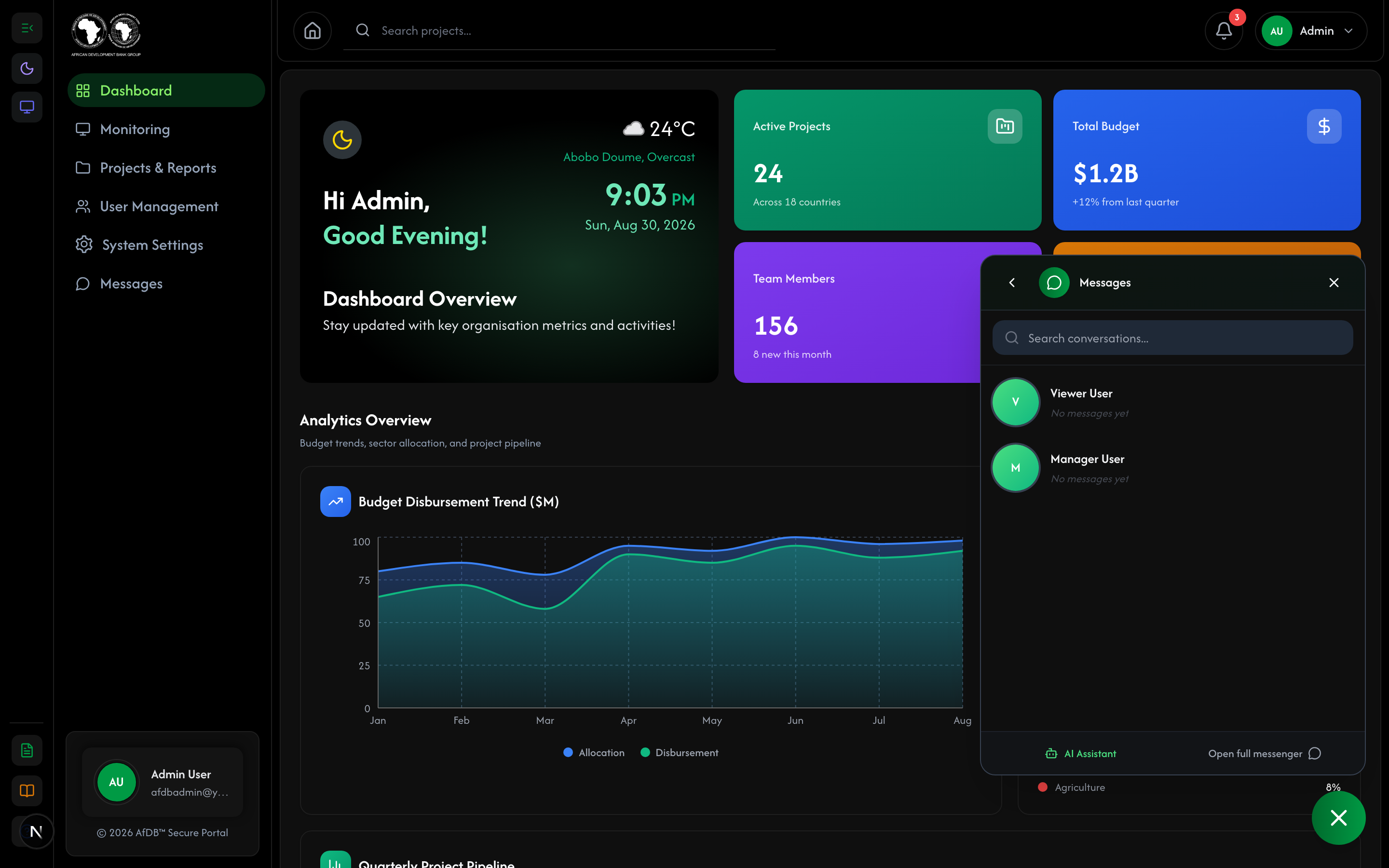
10.6 Transitioning to Live Chat
When you need human assistance, the floating chat widget makes it seamless to switch from the AI bot to a live conversation. Click "Talk to our team" to reveal the list of team members you can message directly.


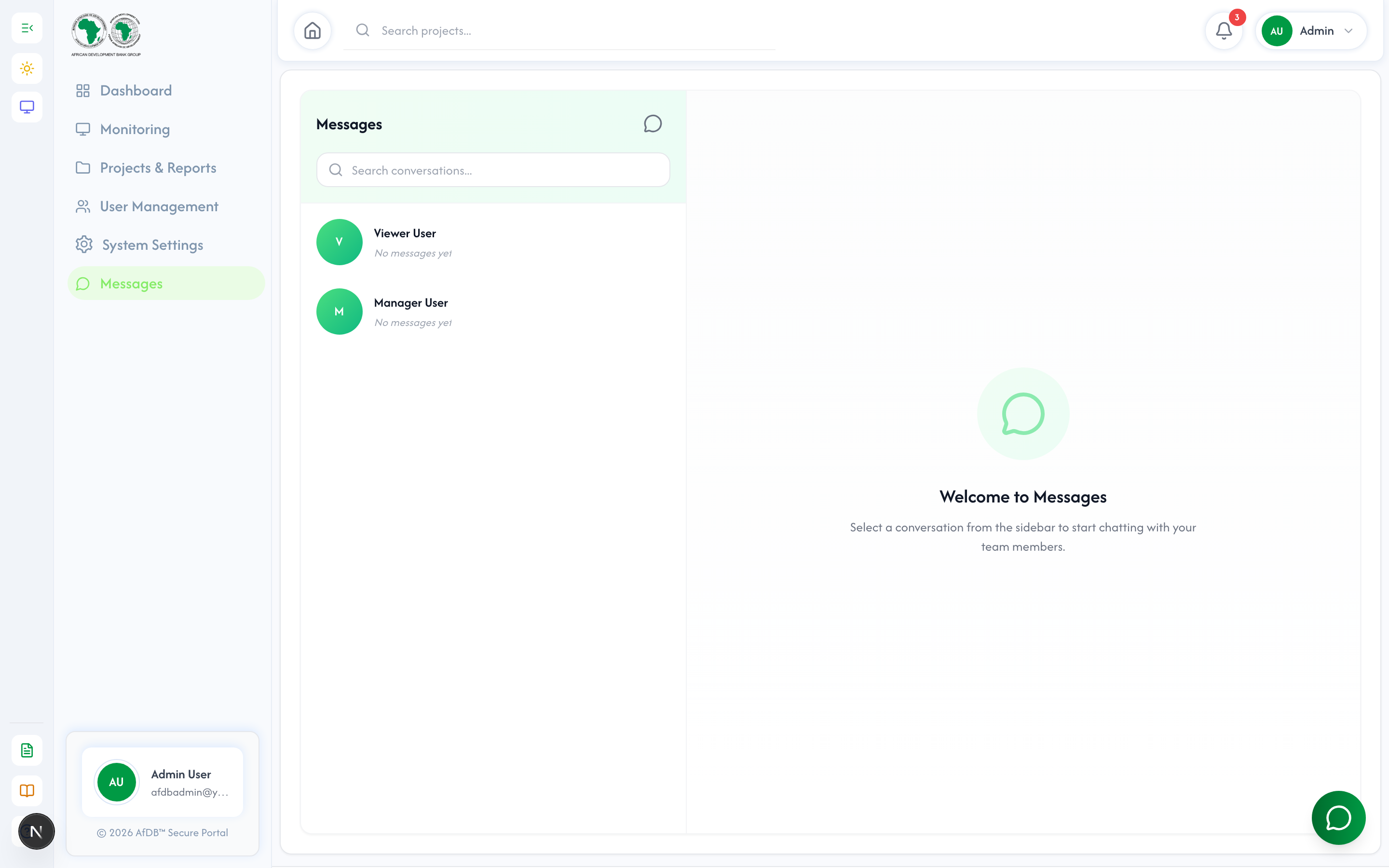
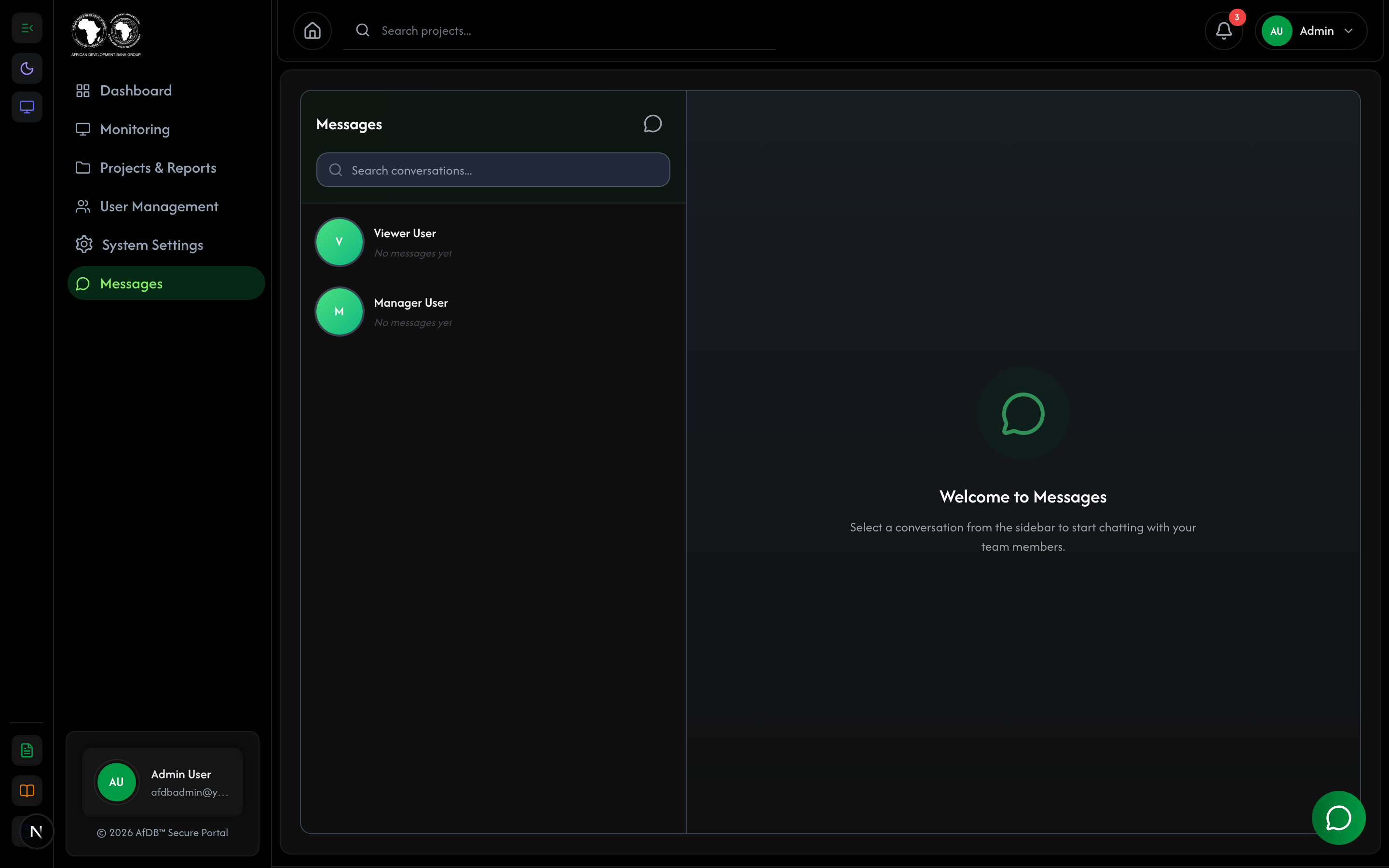
10.7 Full Messenger Chat Page
For a more immersive messaging experience, you can open the full Messenger page. Click the chat bubble icon next to the floating widget's input area, or navigate to Messages from the sidebar. The full chat page provides a dedicated conversation view with all your contacts.
- From the floating chat widget, click the small chat icon next to the input field
- Or navigate to Messages in the sidebar menu
- The full Messenger page opens with your conversations list on the left
- Select a team member to view your full conversation history
- Send messages, share files, and collaborate in real-time
10.8 Chat Topics
The AI Assistant can help with a wide range of topics:
| Topic | Example Questions |
|---|---|
| Projects | How do I create a project? Who can approve projects? |
| Team | How do I add team members? What roles are available? |
| Reports | How do I generate reports? How do I export data? |
| Settings | How do I change my password? How do I enable dark mode? |
| Security | How does MFA work? How do I reset my password? |
| Dashboard | What metrics are tracked? How do I view analytics? |
| Budget | How is budget tracking done? What sectors are tracked? |
Monitoring & Analytics
The Dashboard provides comprehensive monitoring and analytics capabilities, giving you real-time visibility into project performance, budget allocation, and team activity across all sectors.
11.1 Dashboard Overview
The main dashboard displays key metrics and analytics at a glance, helping you monitor the health of your portfolio.


11.1.1 Monitoring Page
The dedicated Monitoring page provides an in-depth view of system health, project performance metrics, and activity logs. Navigate to Monitoring from the sidebar for a comprehensive operational overview.


11.2 Key Metrics
| Metric | Description |
|---|---|
| Total Projects | Count of all projects in the system across all countries and sectors |
| Active Projects | Projects currently in implementation status |
| Total Budget | Aggregate budget allocation across all projects, displayed with country breakdown |
| Completion Rate | Average project completion percentage across the portfolio |
11.3 Analytics Charts
The dashboard includes interactive charts for monitoring financial and sector performance:
| Chart | Purpose |
|---|---|
| Budget Disbursement Trends | Line chart showing allocation vs disbursement over time by sector |
| Sector Allocation | Pie chart showing budget distribution across Infrastructure, Transport, Energy, Digital, and Agriculture |
| Quarterly Pipeline | Bar chart showing projects planned vs completed per quarter |
All charts are interactive! Hover over data points for detailed values, and use the legend to toggle specific data series on/off. You can also export chart data via the Reports section.
API Documentation & Health Check
The backend server provides two essential developer endpoints accessible via the sidebar quick-action buttons. These tools help you explore the API and verify system health in real-time.
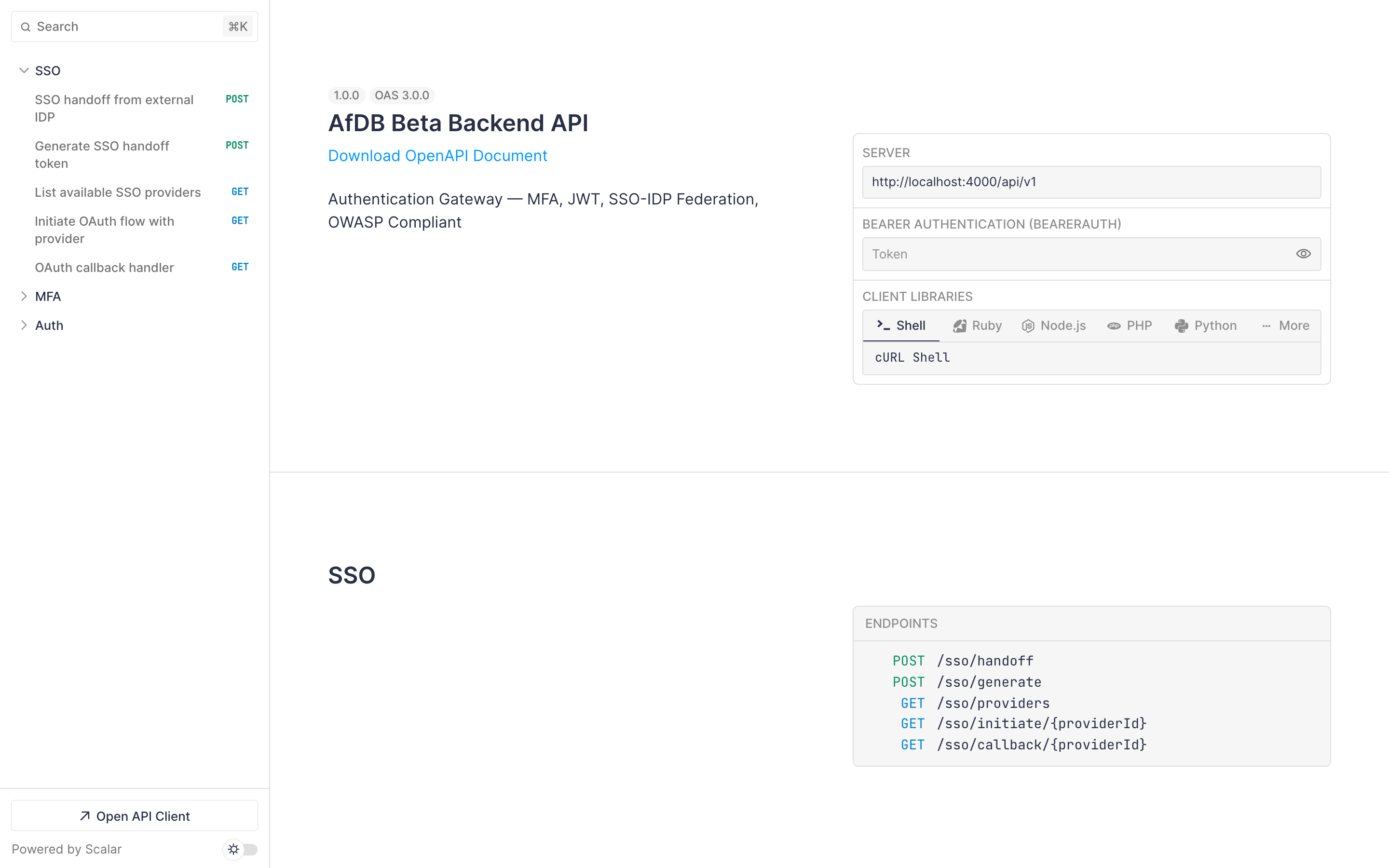
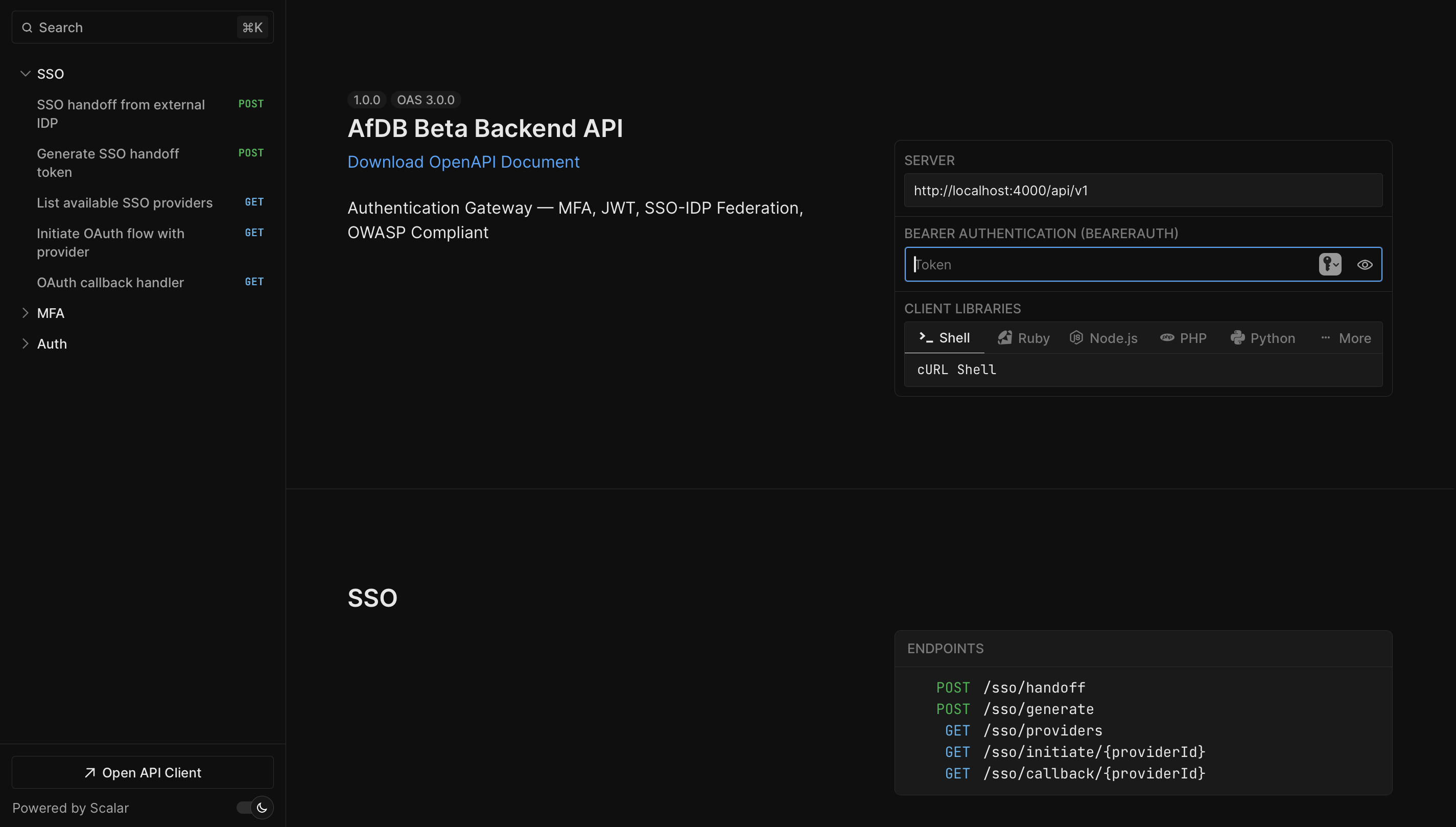
12.1 API Documentation (Swagger UI)
The interactive API documentation is powered by Swagger UI and available at localhost:4000/api-docs. It provides a complete reference of all available endpoints, request/response schemas, and the ability to test API calls directly from the browser.
- Click the API Documentation button (code icon) in the sidebar quick actions
- Or open
http://localhost:4000/api-docsdirectly in your browser - Browse available endpoints grouped by controller (Auth, MFA, SSO, etc.)
- Expand any endpoint to view parameters, request body, and response schemas
- Click "Try it out" to test endpoints directly from the documentation
The API documentation is auto-generated from the backend code. All endpoints listed are live and can be tested with valid authentication tokens obtained from the login flow.
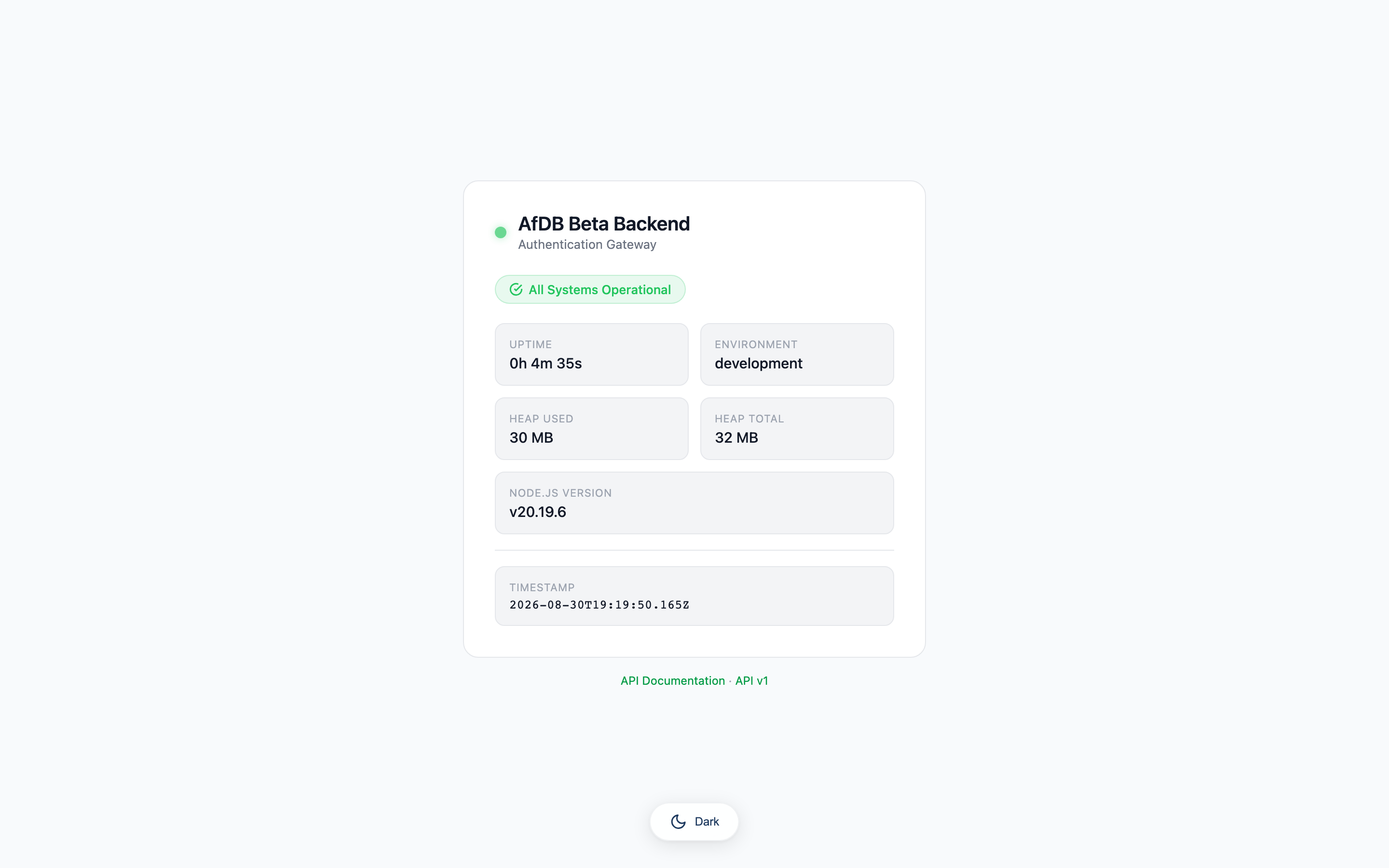
12.2 Health Check Endpoint
The health check endpoint at localhost:4000/health returns the current status of the backend server and its dependencies (database, Redis). This is useful for monitoring uptime and diagnosing connectivity issues.
- Click the Health Check button (heartbeat icon) in the sidebar quick actions
- Or open
http://localhost:4000/healthdirectly in your browser - The response shows server status, uptime, and connection states for MongoDB and Redis
- A green status indicator in the sidebar confirms the server is healthy
| Field | Description |
|---|---|
| status | Overall server health — "ok" means all systems operational |
| uptime | Server uptime in seconds since last restart |
| database | MongoDB connection status — "connected" or "disconnected" |
| redis | Redis connection status — "connected" or "disconnected" |

If you continue to experience issues, please contact the AfDB IT Help Desk at helpdesk@afdb.org or call +225 20 20 50 08.
AfDB Reference Application — User Manual v1.0
Prepared by Eng. Depute N.Alphonse, PMP®